D365 F&O CAE — How to Kill a Stolen Session Token in Milliseconds
Standard MFA protects the front door. CAE protects the inside. Discover how Continuous Access Evaluation kills stolen D365 F&O session tokens in milliseconds — with complete sign-in log forensic evidence for your ITGC auditor.

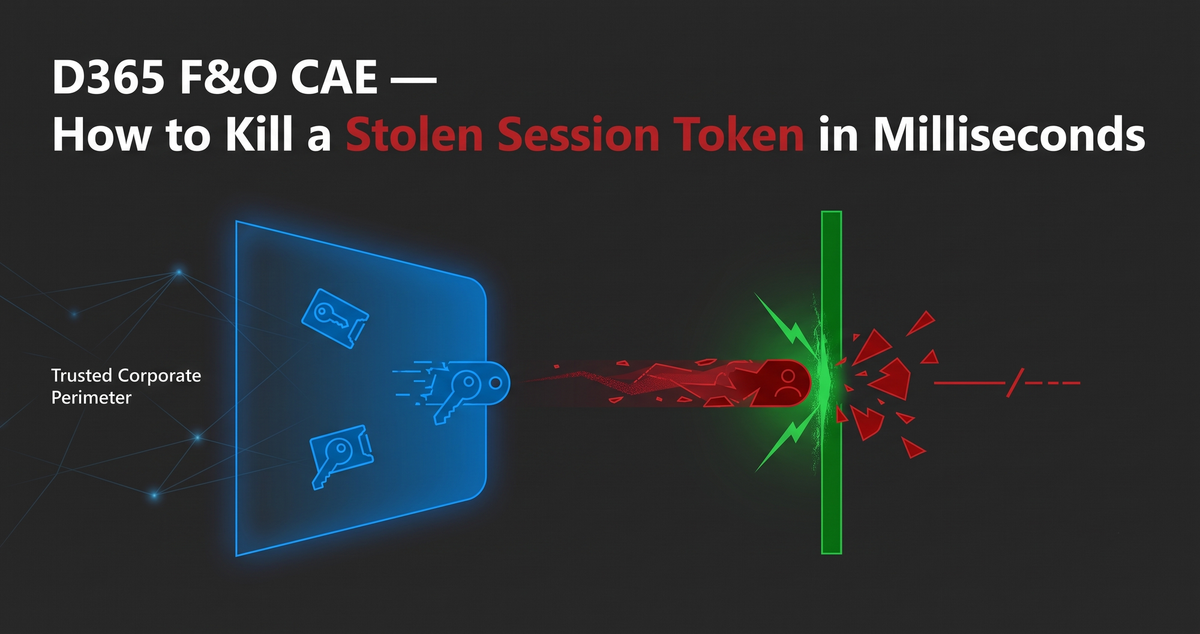
Imagine a hacker sends a highly sophisticated, targeted phishing email to your Chief Financial Officer.
The CFO clicks the link, enters their password, and flawlessly approves the multi-factor authentication (MFA) prompt on their smartphone.
In that exact moment, an Adversary-in-the-Middle (AiTM) attack silently steals the CFO's active session cookie.
The attacker imports that cookie into a browser on a server operating out of a hostile nation state.
Because that stolen token already satisfied the MFA requirement, the attacker bypasses your front door entirely. They walk straight into Dynamics 365 Finance & Operations undetected.
If you rely solely on standard MFA, you are completely blind to this attack.
Standard MFA is a point-in-time check. It only evaluates security at the exact millisecond a user logs in.
Once Entra ID issues that access token, the user—or the hacker holding the token—is granted a 60 to 90-minute vulnerability window.
During that window, standard security protocols assume the session is safe. The attacker has an hour and a half to download your vendor master file, alter bank routing numbers, and exfiltrate financial data.
To stop this, we must shift from point-in-time checks to real-time continuous surveillance.
Today, I am going to walk you through the exact architecture required to implement Entra ID Continuous Access Evaluation D365.
I have already pre-configured this zero-trust architecture in our environment.
Let me walk you through each architectural decision we made, and how this specific policy creates instant D365 stolen session token protection.
Step 1: Targeting Users and Protecting the Architects
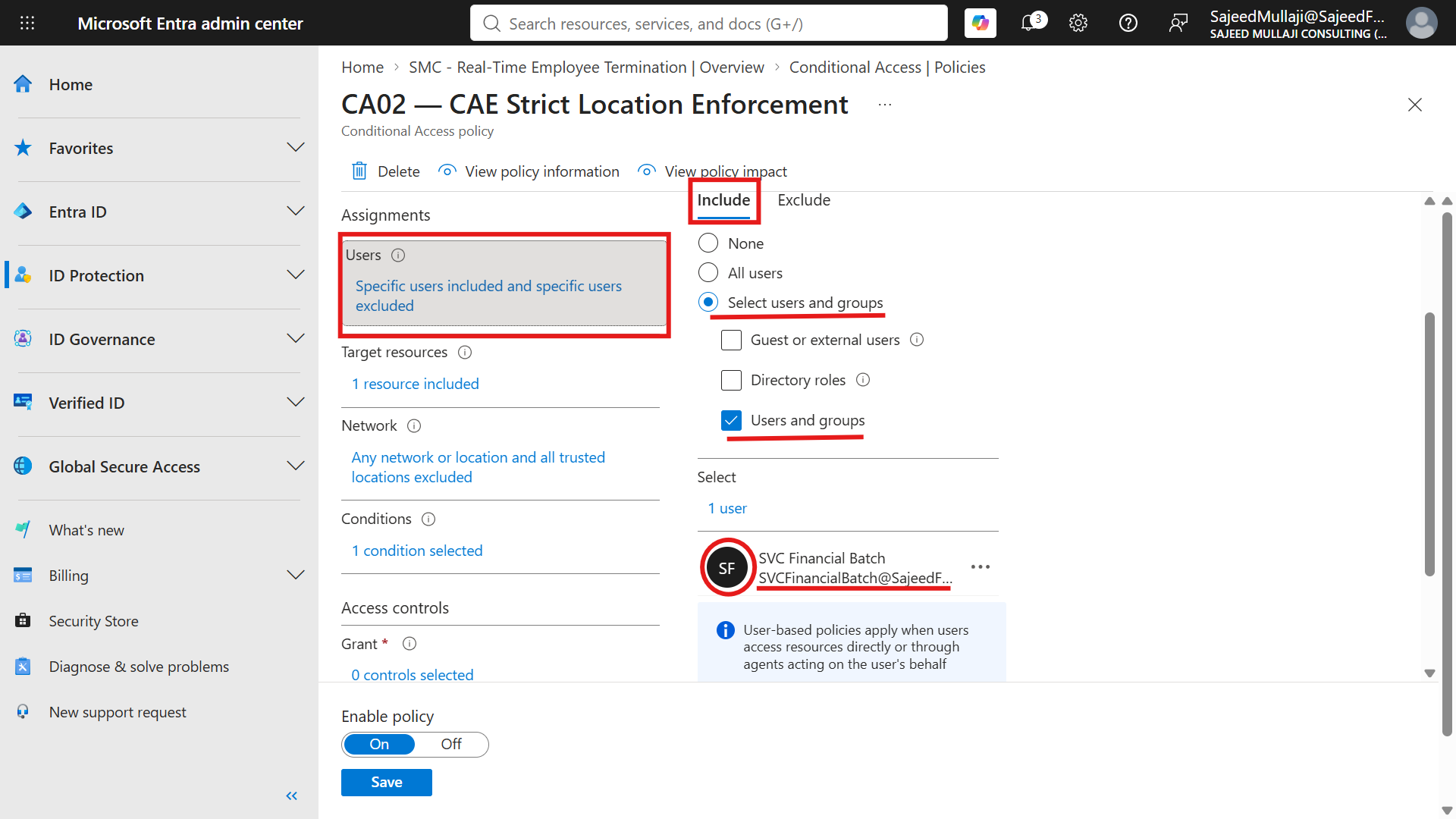
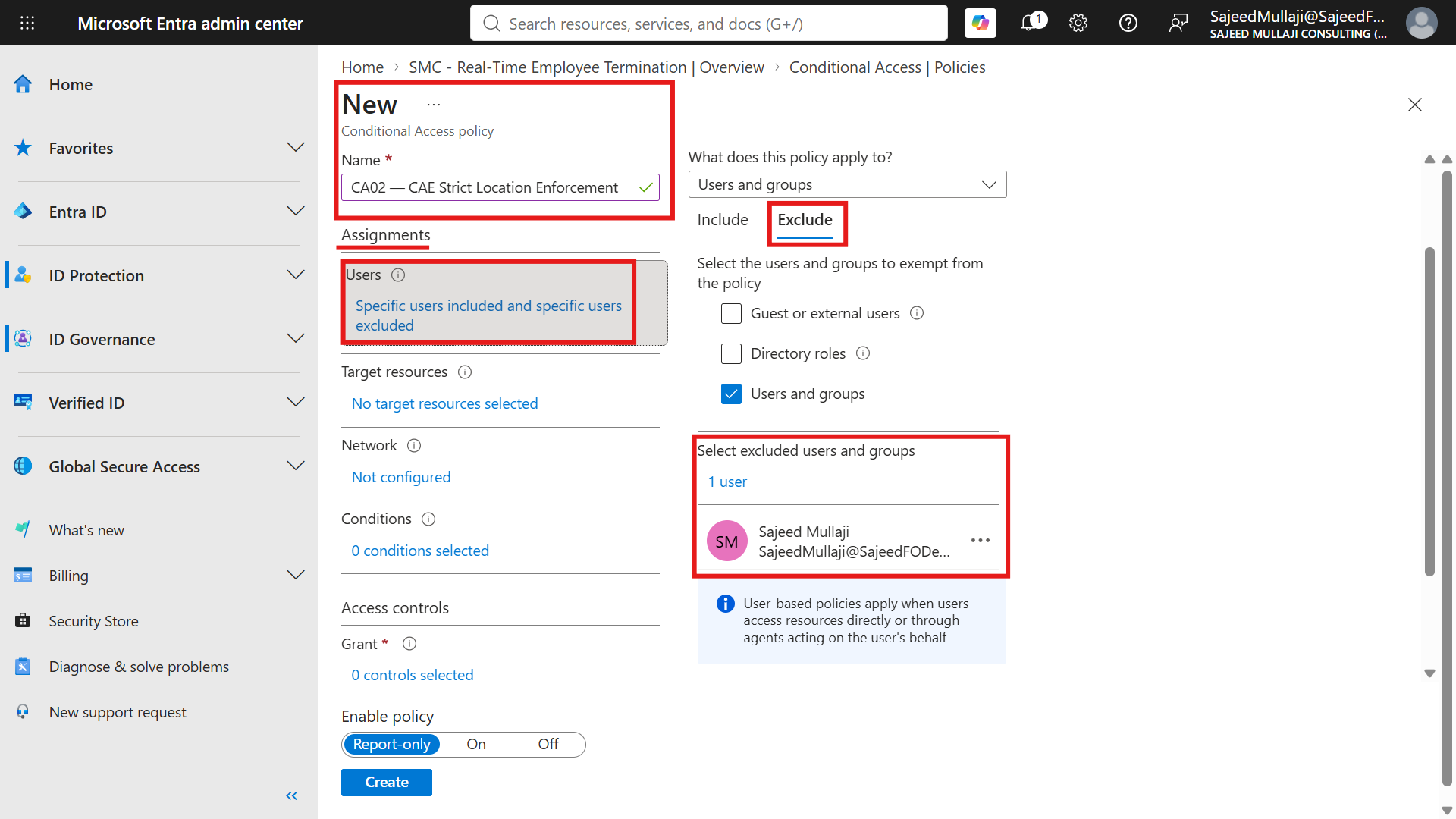
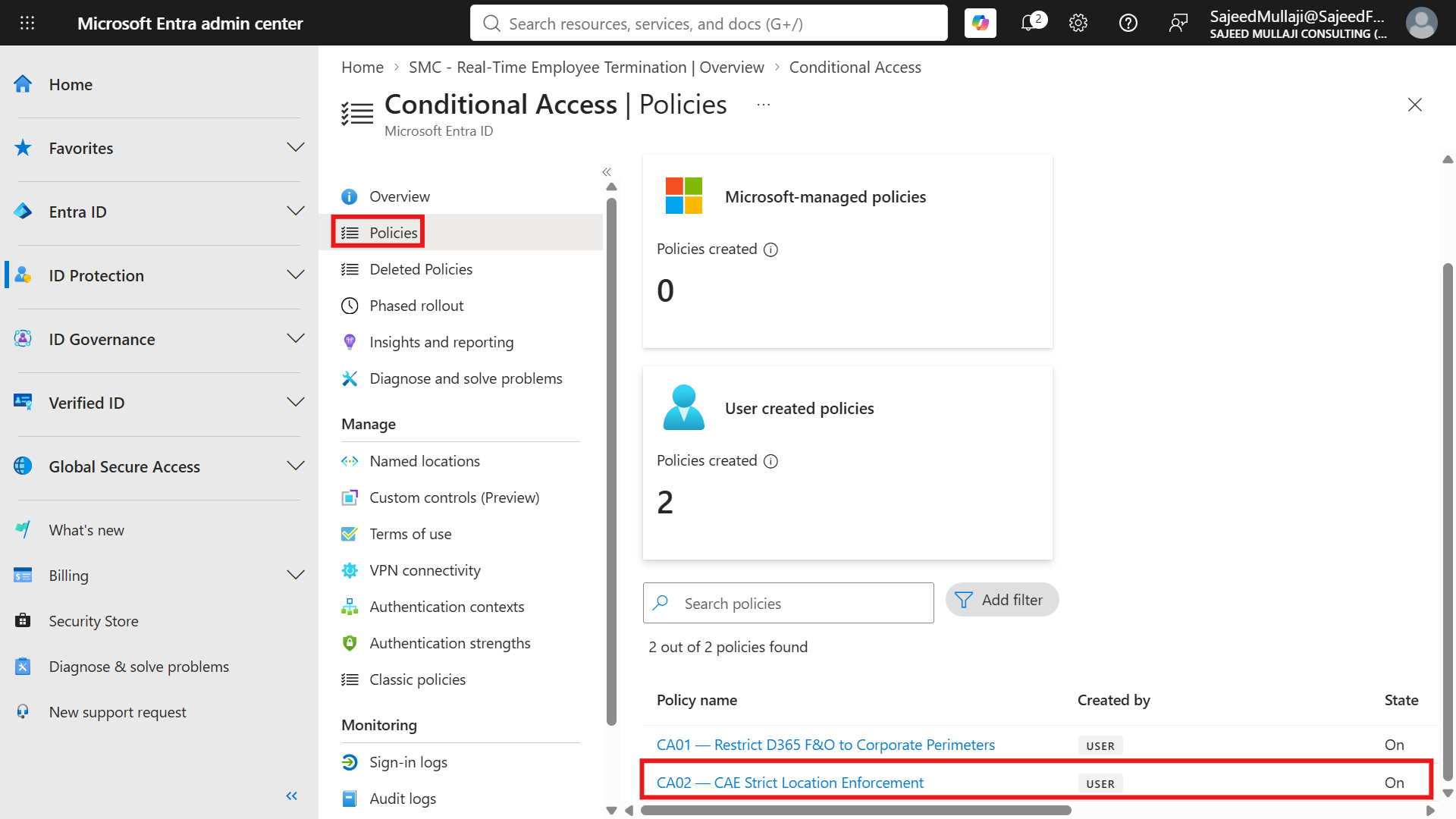
We start inside the Entra ID Conditional Access menu. I have created a dedicated policy named "CA02 - CAE Strict Location Enforcement."
Let's examine the Users assignment section of this policy. (Reference: Screenshot 1 — CA02 Users section).
You will see that I have explicitly included our test user, "SVC Financial Batch."
However, look closely at the exclusions. I have explicitly excluded my own account, the "SajeedMullaji Global Admin."
This is a critical architectural safeguard. You must never apply strict CAE location rules to a Global Administrator without a break-glass exclusion.
If your internet service provider dynamically changes your IP address mid-session, CAE will assume your token was stolen and lock you out of your own tenant. We secure the business, but we never lock out the architects.
Step 2: Surgically Targeting the Financial System
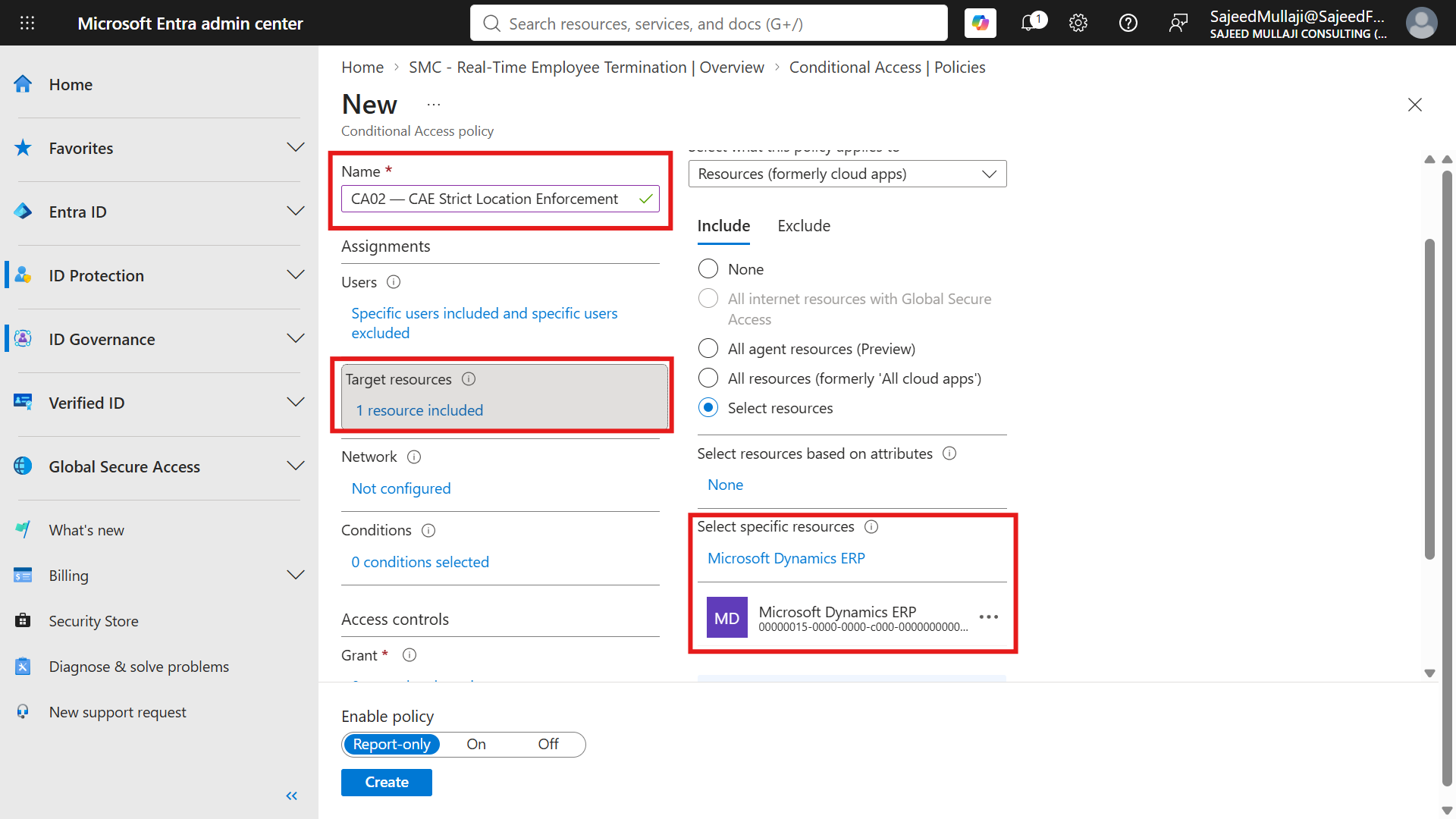
Next, we define exactly what application this real-time surveillance applies to. (Reference: Screenshot 2 — Target resource).
I have specifically targeted "Microsoft Dynamics ERP." I did not select "All cloud apps."
CAE strict enforcement is a heavy, aggressive security control. It should be applied surgically to your tier-one financial system.
Applying this blindly to casual communication tools like Microsoft Teams or Exchange Online will create unnecessary friction for your workforce. We isolate the protection to the ERP.
Step 3: Defining the Surveillance Perimeter
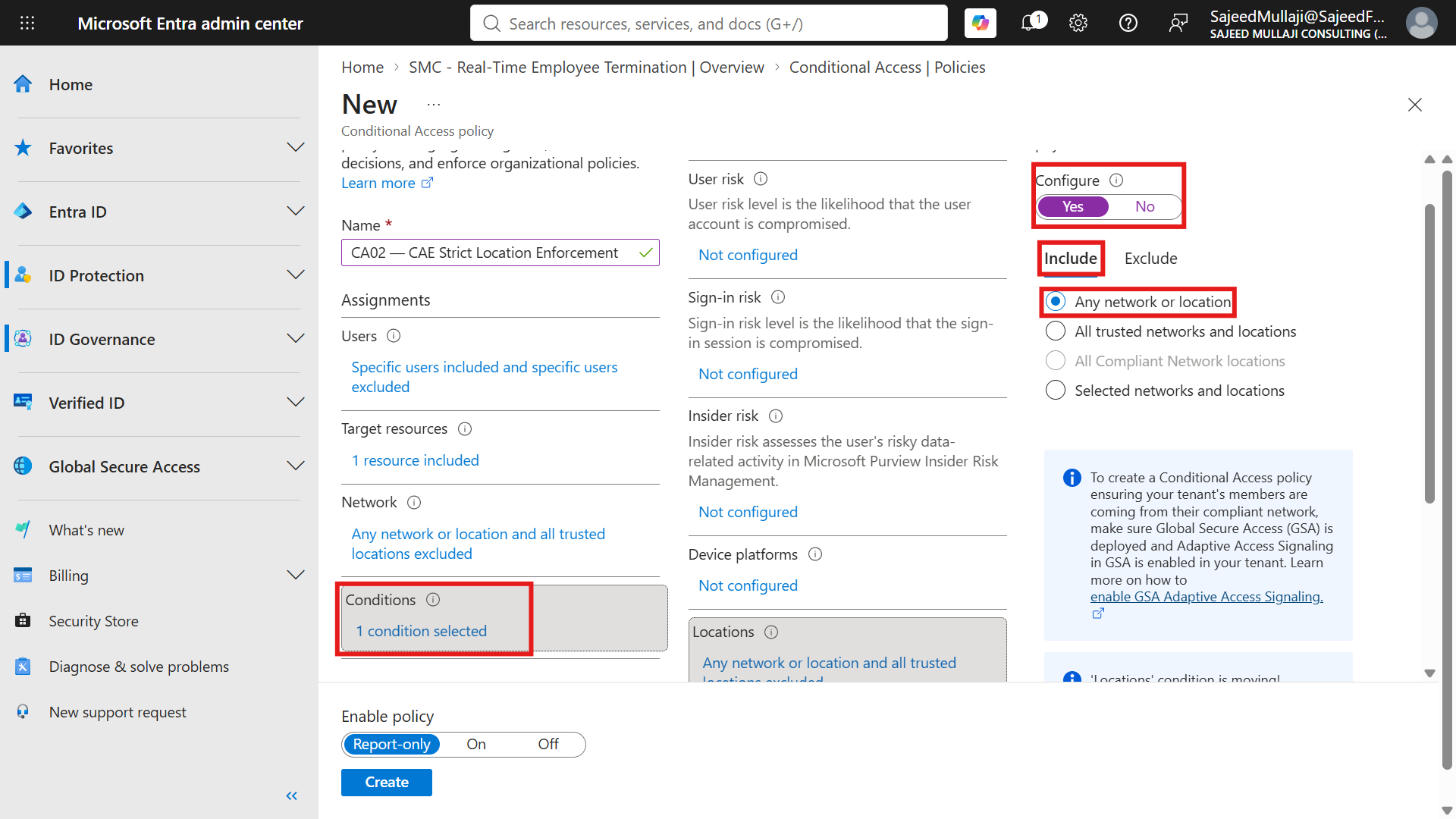
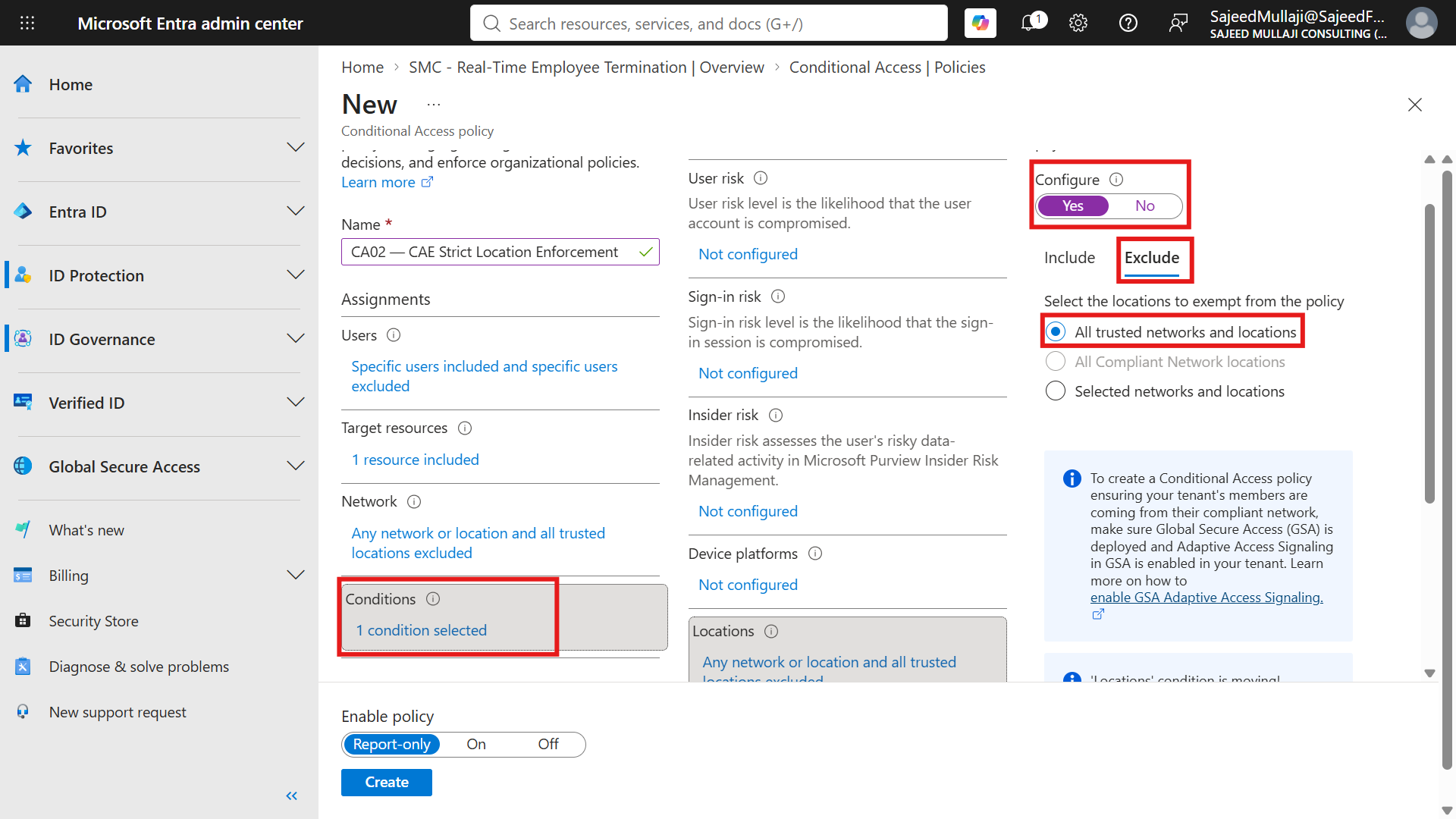
Now we must define the network boundary. We do this under the Conditions and Locations menu. (Reference: Screenshot 3 — Conditions Locations).
I have configured the policy to include "Any location," but I have explicitly excluded "All trusted locations."
This means CA02 is designed exclusively to monitor sessions that appear from outside your trusted corporate network.
If your finance team is working inside the corporate office, they experience zero friction. If a token suddenly appears outside the office, it triggers real-time surveillance.
Step 4: The Millisecond Kill Switch
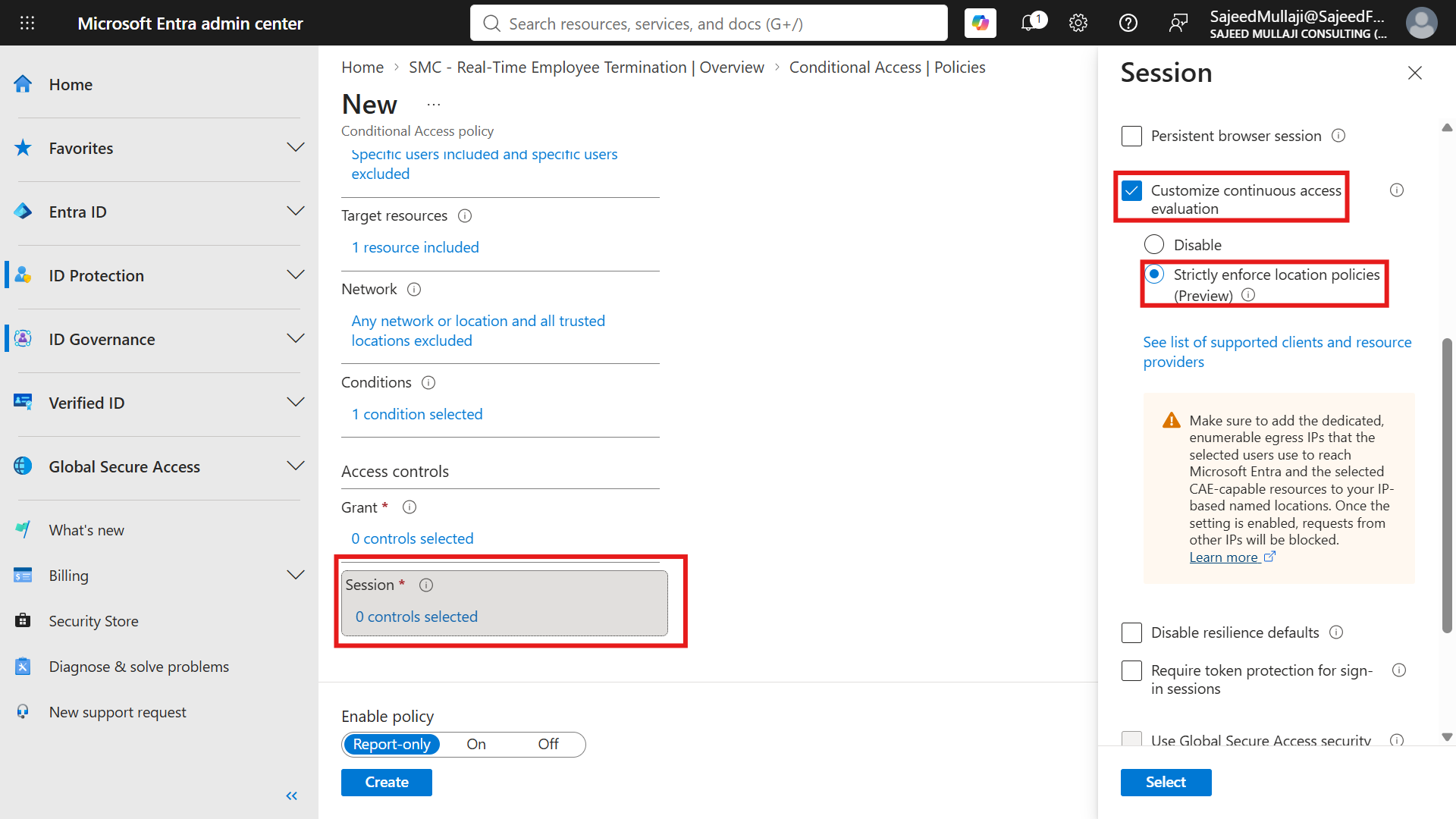
Here is the absolute core of CAE D365. We navigate down to the Session controls. (Reference: Screenshot 4 — Session controls).
I have selected "Customize continuous access evaluation," and I have enabled the crucial setting: "Strictly enforce location policies."
This is the kill switch for stolen tokens.
If a hacker steals a token and tries to use it from an untrusted IP address, Entra ID detects the location anomaly instantly.
Instead of waiting 60 minutes for the token to expire, this setting triggers an immediate D365 F&O session revocation. The token is invalidated in milliseconds.
Step 5: The Two-Layer Zero-Trust Defense
If we zoom out to look at our active policies, you will see a two-layer defense strategy operating in tandem. (Reference: Screenshot 5 — Both CA01 and CA02 policies active).
Policy CA01 is configured to "Restrict D365 F&O to Corporate Perimeters." This policy guards the front door. It blocks unauthorized logins from the outside.
Policy CA02 is our "CAE Strict Location Enforcement." This policy guards the inside. It kills stolen tokens that slip past the front door mid-session.
You need both. One prevents the breach; the other neutralizes the hijack.
The Forensic Proof: Reading the Sign-In Logs
When you deploy this level of Entra ID CAE, your ITGC auditors will demand cryptographic proof that it is actually working in production.
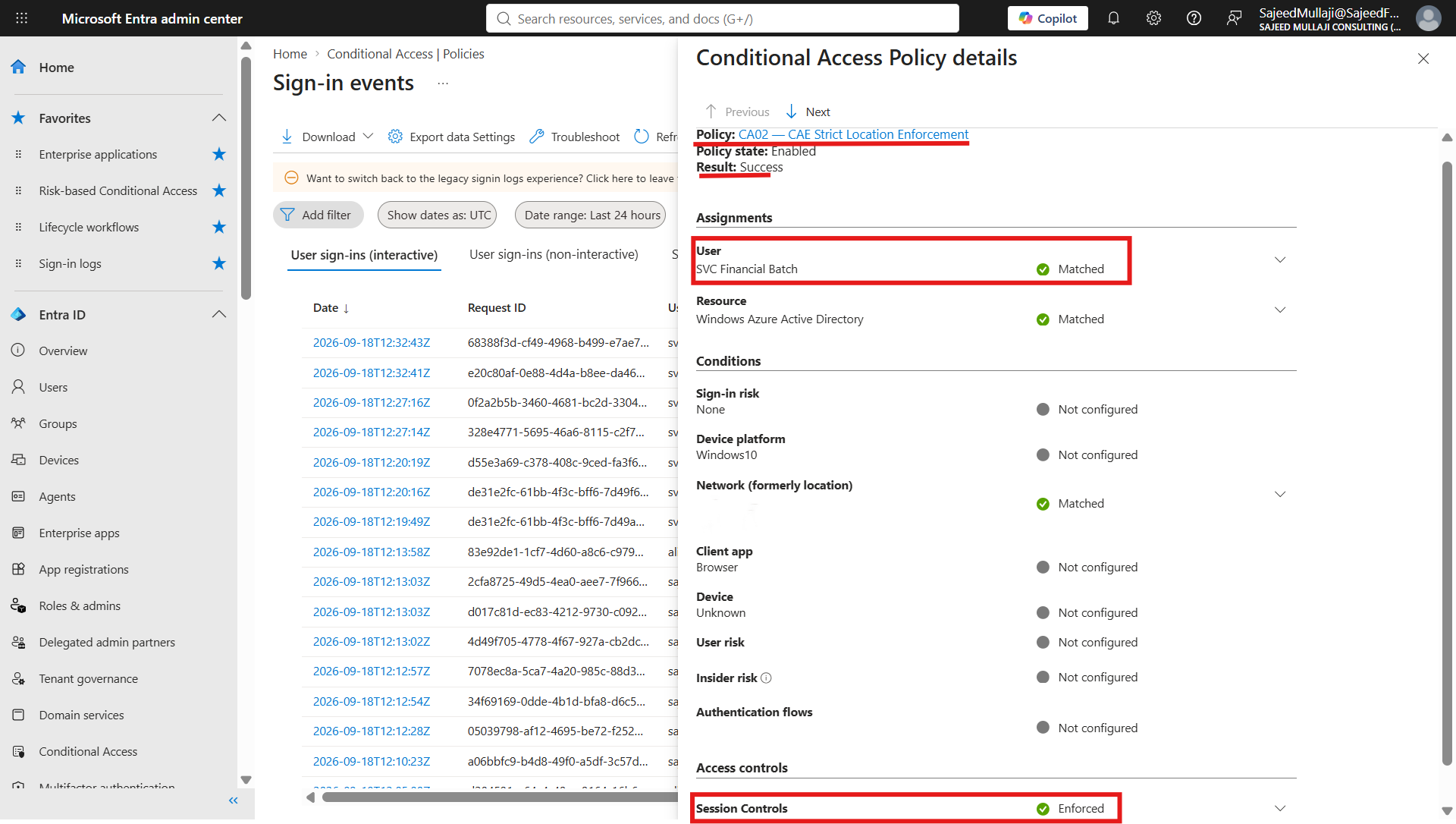
We prove this by examining the Entra ID Sign-in logs for our targeted user. When you look at the logs, you will notice two distinct entries for a single login.
The first entry will show a status of "Interrupted." Junior administrators often panic here, assuming the system is broken.
"Interrupted" simply means Entra ID did its job. It interrupted the login process to demand an MFA challenge from the user.
Once the user approves that MFA prompt, Entra ID generates the second log entry. This entry will show a status of "Success."
If you open the details of that second Success log, you will see the Continuous Access Evaluation field also says "Success." This confirms the session is under active surveillance.
Finally, we pull the specific policy telemetry for the auditor. (Reference: Screenshot 6 — Conditional Access policy details forensic proof).
This screen shows Policy CA02 is Enabled. The Result is Success. The User and Network matched our conditions.
Most importantly, it shows Session Controls: Enforced. This is your unalterable ITGC audit evidence proving real-time token invalidation D365 is active.
The 3-Step IT Security Response
When CAE detects an anomaly and kills a session, your IT security team must follow a strict incident response protocol.
Do not simply let the user log back in. A triggered CAE event means a token was compromised.
Step 1: Revoke Sessions. The administrator must go into the Entra ID user profile and manually click "Revoke sessions" to clear all existing refresh tokens.
Step 2: Disable the Account. Temporarily disable the user account to freeze the perimeter while the investigation occurs.
Step 3: Investigate Sign-in Logs. Dig into the Entra ID logs to identify the exact IP address, location, and device that attempted to use the stolen token.
Only after the source of the token theft (like malware on a home PC) is identified and remediated should the account be restored.
The CFO Cross-Examination
When I walk enterprise clients through this exact pre-configured architecture, leadership immediately tests the boundaries of the system.
Here are the three most critical operational questions CFOs and IT Audit Directors ask about Entra ID Continuous Access Evaluation D365.
Cross question 1: Will CAE constantly kick our finance team out of D365 every time their WiFi drops?
Answer: Yes, it might. If they move from a trusted corporate IP to an untrusted public network mid-session, CAE assumes the token was hijacked.
It will instantly force a re-authentication. This is a minor operational inconvenience in exchange for maximum zero-trust security.
We are sacrificing seamless roaming to guarantee that a stolen token cannot be weaponized against your financial data.
Cross question 2: We already force MFA every morning at login. Why is CAE any different?
Answer: Morning MFA only protects you against stolen passwords.
It does absolutely nothing to protect against session token theft, AiTM attacks, or an insider who logged in legally at 8:00 AM but decided to go rogue three hours later.
CAE acts as an internal vault door. It forces cryptographic re-verification at the exact second a high-risk location change occurs mid-session.
Cross question 3: Do we still need Lifecycle Workflows if we have CAE turned on?
Answer: Absolutely yes. You must practice defense in depth.
CAE is brilliant at stopping external token thieves. However, for a hostile internal employee termination, CAE is not enough.
You must still use Lifecycle Workflows to actively fire the kill command to guarantee the internal session dies. CAE stops the external threat; Lifecycle Workflows stop the insider threat. You use both.
The Complete 4-Layer Architecture
We have now finalized the absolute perimeter for your ERP. Let us summarize the four-layer architecture we have built across this video series.
First, Conditional Access (CA01) stops unauthorized access at the front door.
Second, Privileged Identity Management (PIM) controls and audits your elevated administrative access.
Third, Lifecycle Workflows close the Friday afternoon leaver gap, permanently eliminating ghost accounts.
Finally, Continuous Access Evaluation (CAE) kills stolen tokens mid-session.
When you combine these four layers, you achieve an unbreakable, audit-proof identity governance architecture.
To review the entire strategic masterplan, visit sajeedmullaji.com/tag/d365-governance-roadmap.
If you need standardized, audit-ready matrices to accelerate your internal role design, download my professional frameworks at sajeedmullaji.com/tag/templates.
If your enterprise is running Dynamics 365 without Continuous Access Evaluation, your financial data is exposed to token hijacking right now.
Reach out to me directly at sajeedmullaji.com to build this zero-trust automation for your Dynamics 365 environment.
Executive Q&A: Advanced CAE Mechanics
Q: Does enabling CAE strict location enforcement break our third-party API integrations that pull data from D365?
If your third-party integrations use legacy service accounts with interactive logins, yes, they will break. This is why integration accounts must be migrated to Managed Identities or Service Principals using App Registrations. CAE is designed to evaluate human interactive sessions. System-to-system integrations should use client credentials flows, which bypass interactive CAE location checks, ensuring your integrations remain stable while humans are heavily policed.
Q: If an attacker steals a token and uses it from an IP address that we already marked as a "Trusted Location," will CAE stop them?
No. If the attacker compromises a machine physically located inside your trusted corporate network (or accesses your environment via a compromised corporate VPN), the location condition remains satisfied. CAE will not kill the token based on location. This highlights why CAE is a layer, not a silver bullet. You must pair it with device compliance checks (requiring Intune-managed devices) so that even if the IP is trusted, the attacker's foreign device is rejected.
Q: Our auditors want to know the exact latency. When the IP changes, how many milliseconds does it actually take for D365 to revoke the session?
When strict location enforcement is enabled, the latency is practically zero upon the next resource request. Entra ID issues CAE tokens with an internal mechanism that requires the application to constantly validate the network perimeter. The moment the browser attempts to load a new page or submit a record from the new IP, the Azure Edge intercepts the request, recognizes the location mismatch against the CAE claim, and denies the token refresh instantly. The session dies before the D365 application layer even attempts to process the transaction.