D365 F&O Conditional Access — How to Make a Stolen Password Completely Useless
A stolen password gives an attacker valid credentials. Conditional Access makes those credentials completely useless outside your corporate network. Discover the exact configuration that protects your D365 F&O environment at the identity perimeter layer.

You have spent months engineering the perfect Segregation of Duties matrix inside Dynamics 365 Finance & Operations. You have restricted your Accounts Payable team to only the menus they need to do their jobs.
But what happens when an attacker successfully phishes your AP clerk’s password?
If you rely entirely on internal ERP security, that attacker just gained the exact same access as your AP clerk. They will log in, modify a vendor bank account, and execute a fraudulent payment run.
Internal role security dictates what a user can do once they are inside the system. It does absolutely nothing to restrict where they are logging in from.
To stop an attacker who holds a valid username and password, we must build a perimeter defense layer outside the ERP.
This is where Microsoft Entra ID D365 security takes over. We are going to build a cryptographic force field around your financial data.
Today, we will configure D365 F&O Conditional Access to instantly block any login attempt that does not originate from your physical corporate network.
Here is the exact architecture to make a stolen password completely useless.
Step 1: Defining the Trusted Perimeter
Before we can block attackers, we must tell the system what a safe location looks like.
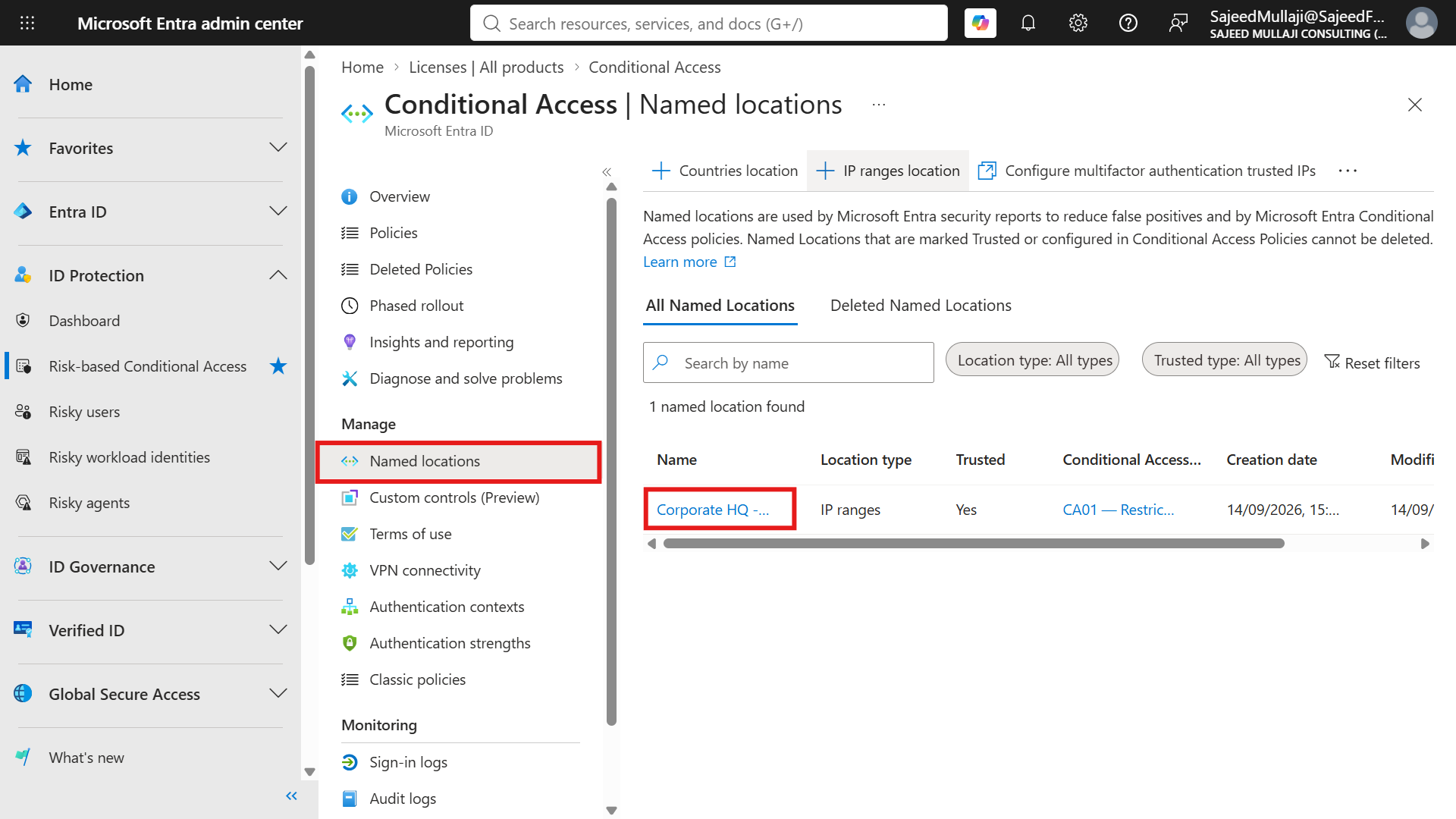
We log into the Entra Admin Center at entra.microsoft.com and navigate to Protection, then Conditional Access.
From here, we open the Named locations menu. This is where we define our corporate boundaries.
We create a new IP ranges location and name it "Corporate HQ - Trusted IP". We input our corporate public IP address, for example, 103.12.12.12/00.
(Note for readers: Always blur or obfuscate your actual corporate public IP addresses in your internal IT documentation for security purposes).
We explicitly mark this as a trusted location. By configuring Entra ID named locations D365, we have just drawn an invisible fence around our headquarters.
Any internet traffic originating outside of this specific IP address is now considered untrusted.
Step 2: Building Policy CA01
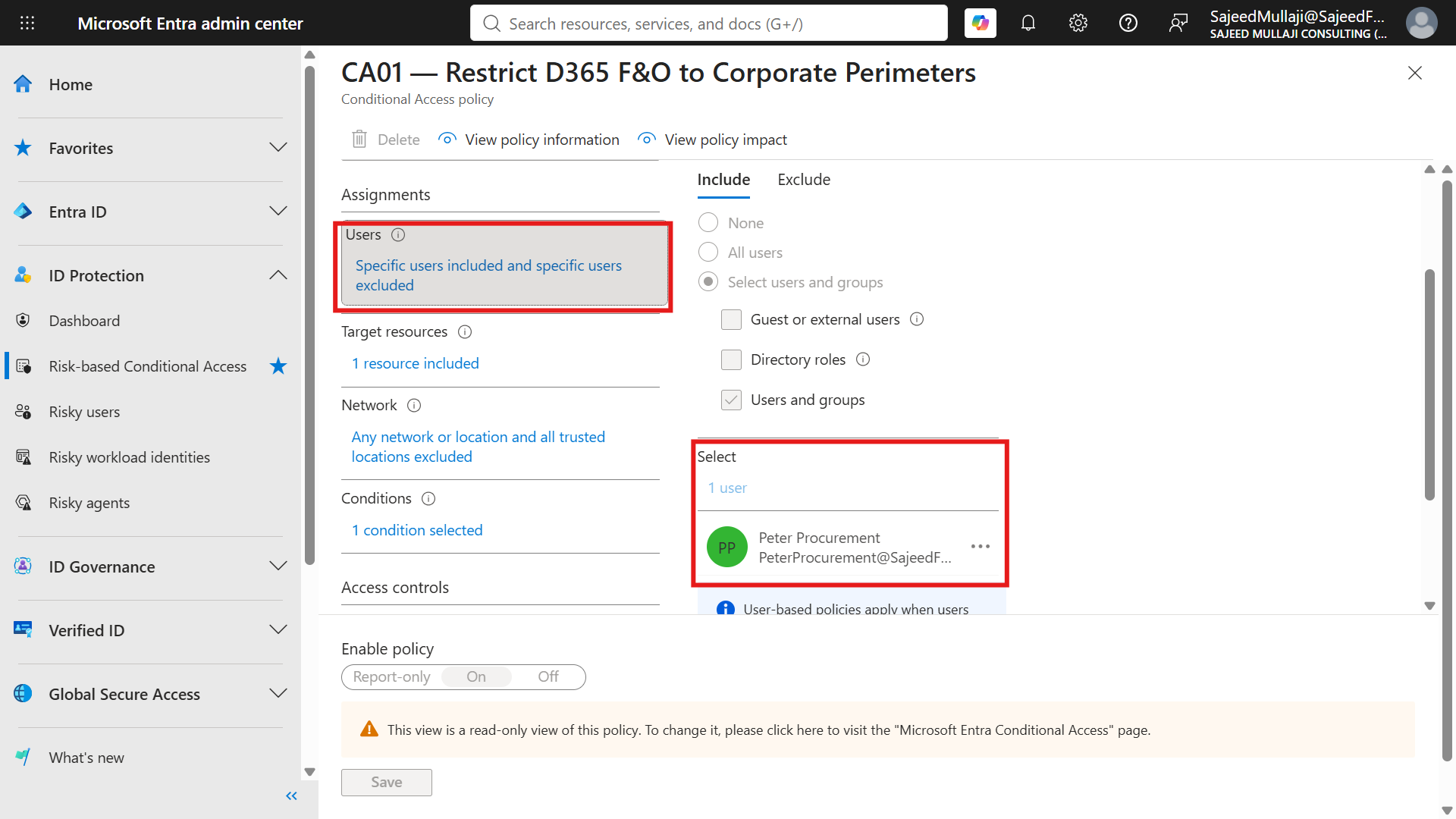
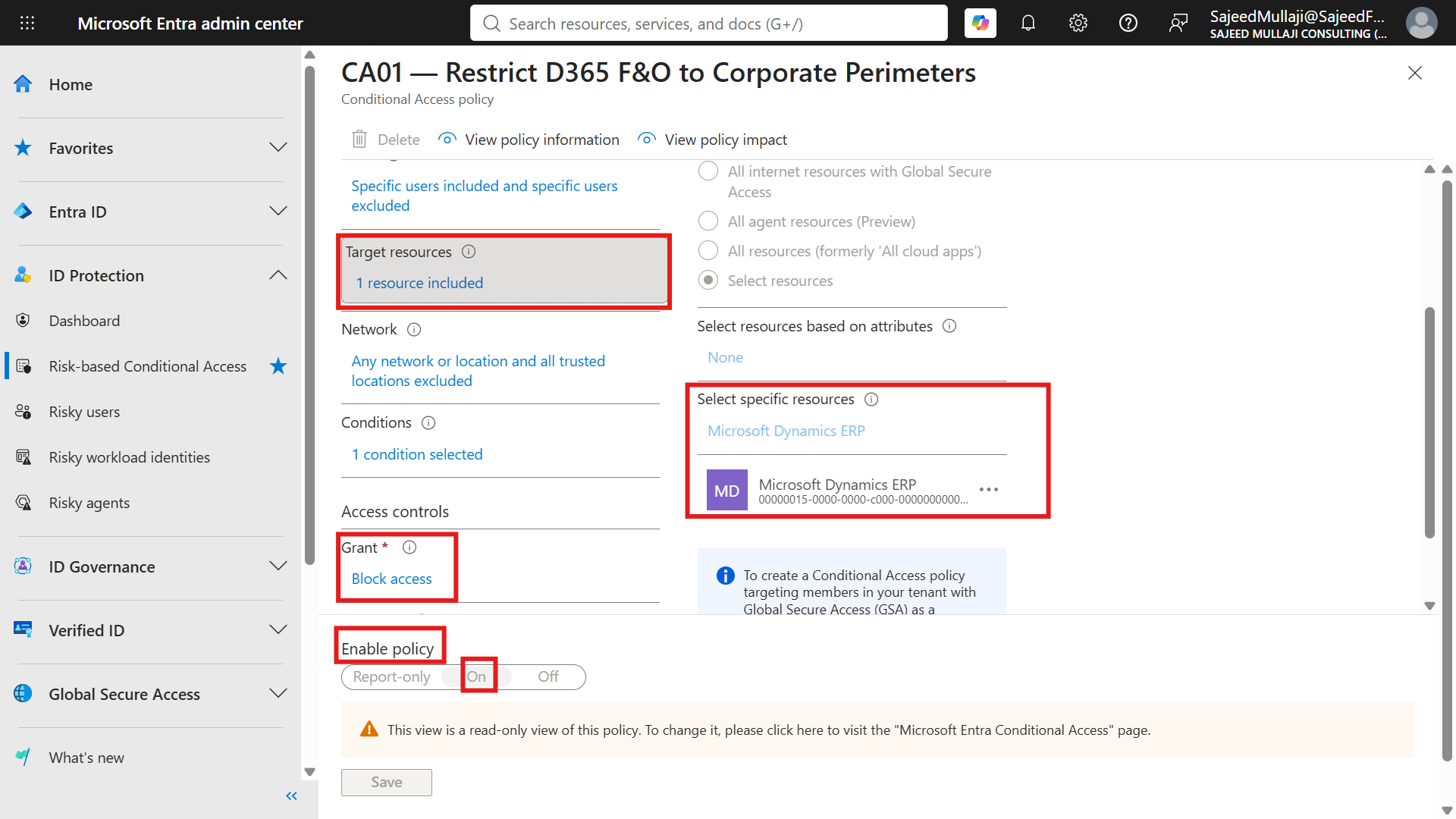
Now we weaponize that location definition. We navigate to Policies and build a new rule named "CA01 — Restrict D365 F&O to Corporate Perimeters".
Under the Users assignment, we explicitly target our AP clerk, Peter Procurement.
Crucially, we must exclude our Global Administrator and break-glass emergency accounts from this policy. If you misconfigure a network policy without an exclusion, you will permanently lock your entire IT team out of your own tenant.
Next, we move to Target resources. We do not select 'All cloud apps'.
We specifically search for and select 'Microsoft Dynamics ERP'. This ensures our D365 F&O access control policy only affects the financial system.
Under Conditions, we go to Locations. We include 'Any location' on Earth. However, under the Exclude tab, we select our 'Corporate HQ - Trusted IP'.
The logic is absolute: Apply this rule everywhere, except when the user is sitting inside our corporate building.
Finally, under Grant controls, we select 'Block access'. We do not ask for a multi-factor authentication (MFA) challenge. We simply shut the door.
We toggle the policy state to 'On' and click Save. The perimeter is now active.
Step 3: The Live Test (The Block)
We must prove this policy holds up against a live attack.
We open a fresh Incognito browser window. We connect to a mobile hotspot to simulate an attacker sitting outside the corporate network.
We navigate to the standard D365 URL and log in as Peter Procurement.
We enter Peter’s exact, valid username. We enter his exact, valid password. The credentials are one hundred percent correct.
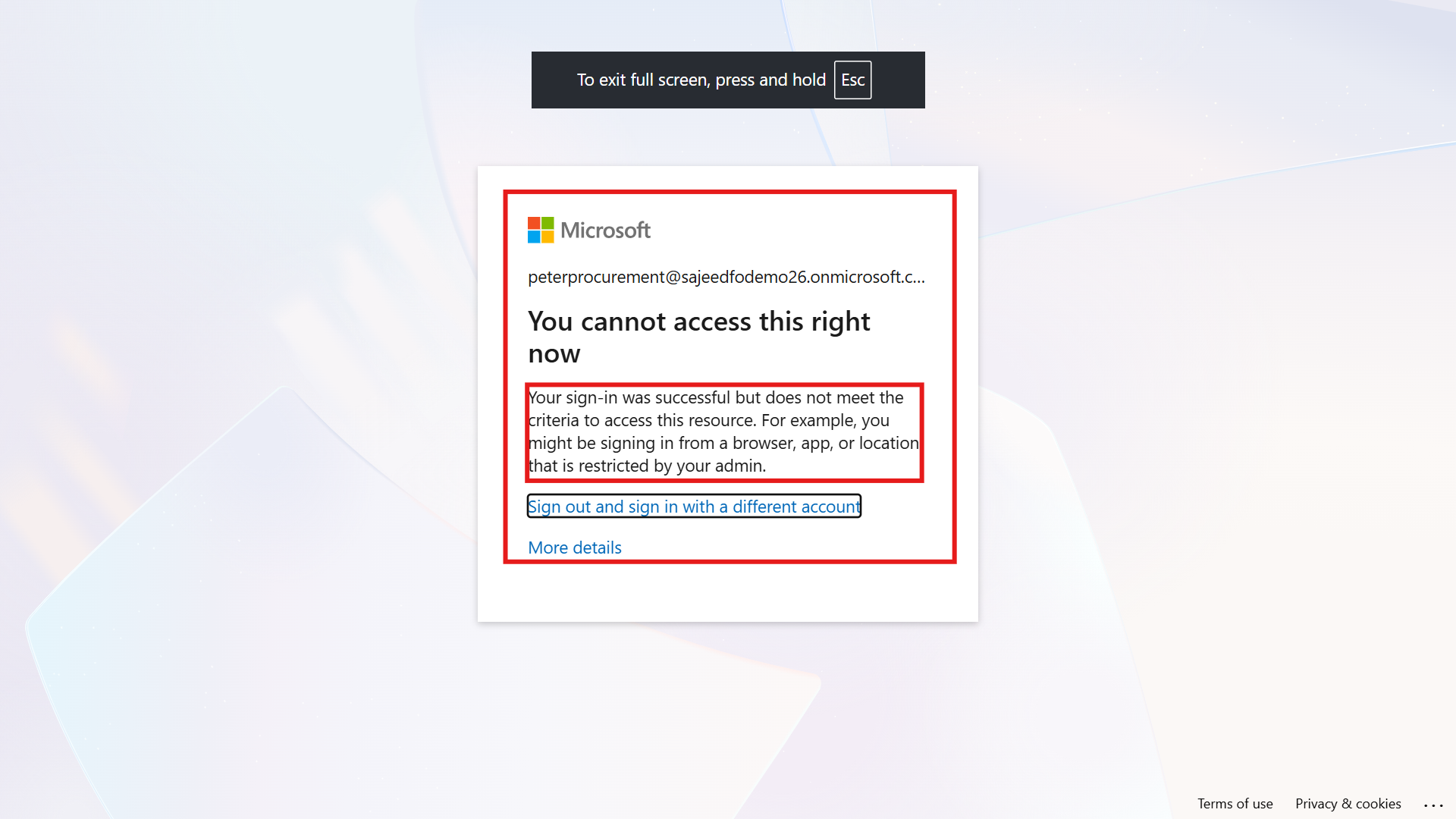
Instantly, the screen goes white and a red Microsoft warning appears.
The message reads: Your sign-in was successful but does not meet the criteria to access this resource.
We have successfully executed a D365 block unauthorized access maneuver. Peter’s stolen password is now completely useless to the attacker.
Step 4: The Forensic Proof
As an IT Audit Director, stopping the attack is only half your job. You must provide forensic proof that your automated controls are working.
We switch back to entra.microsoft.com and open the Sign-in logs.
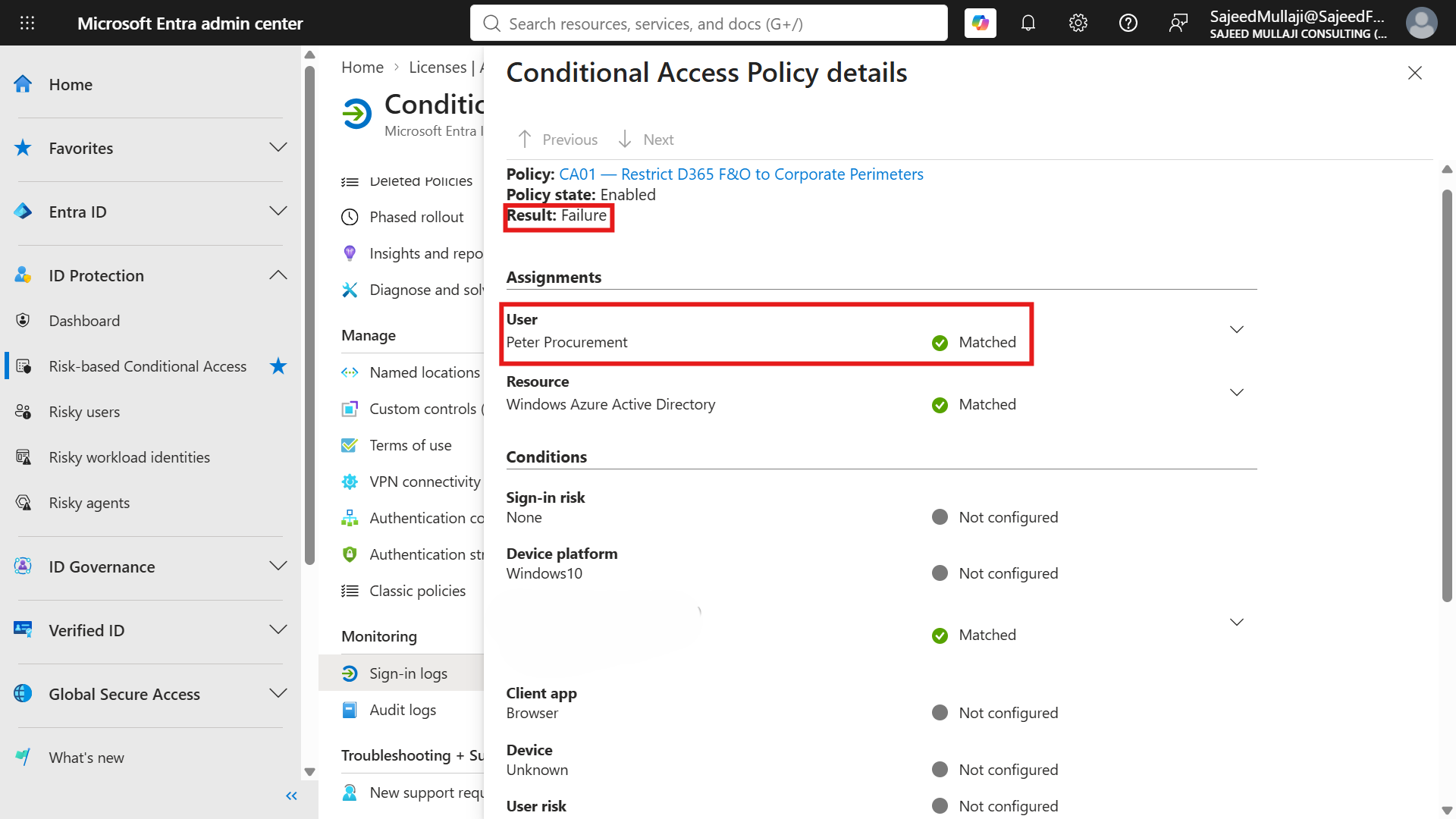
We locate Peter’s failed login attempt and click into the details. At the bottom of the screen, we open the Conditional Access tab.
This is the smoking gun for your auditors. The log explicitly shows that our policy, "CA01 — Restrict D365 F&O to Corporate Perimeters", was applied to this session.
The Result column shows 'Failure'. The Grant Controls column confirms the action was 'Block'.
The log proves the User matched Peter Procurement, and the Location matched an untrusted network. The audit trail is flawless.
The CFO Cross-Examination
When I architect these perimeter defenses for enterprise clients, the C-suite always challenges the strictness of the design.
Here are the three most common questions raised during the security review.
Cross question 1: Why not just require MFA instead of blocking completely?
Answer: MFA is no longer a silver bullet. It assumes the attacker does not have access to the second factor.
SIM swapping, authenticator app compromises, and MFA fatigue prompt-bombing are highly documented attack vectors.
For your highest-risk users—AP clerks, payment journal approvers, and System Administrators—a location-based hard block is the strongest possible control. They should only access master financial data from a strictly controlled corporate network.
Cross question 2: What about legitimate remote workers — do we block them too?
Answer: Entra ID Conditional Access D365 is not a blunt instrument; it is a highly granular policy engine. You have two excellent options.
Option one: If the employee works from a static home office, you can simply add their home IP address to the Named Locations trusted list.
Option two: You build a tiered policy. You allow access from home but require a phishing-resistant MFA token, while maintaining a complete hard block for any login originating from a foreign country.
Cross question 3: Does this Conditional Access policy protect all Microsoft services or just D365?
Answer: Only D365. When we built the policy, we explicitly targeted "Microsoft Dynamics ERP" as the resource.
Peter can still access his Outlook email, Microsoft Teams, and SharePoint files from his hotel room or local coffee shop.
Only the D365 financial environment is location-restricted. This is the surgical precision that Conditional Access provides.
Securing the Ultimate Perimeter
Internal role security is your last line of defense. Conditional Access is your first.
You must deploy both layers to survive a modern, credential-based cyber attack.
This identity perimeter configuration is a critical milestone in our complete enterprise architecture roadmap. You can explore the entire step-by-step governance series at sajeedmullaji.com/tag/d365-governance-roadmap.
If you need standardized, audit-ready matrices to accelerate your internal security design, you can download my professional frameworks directly at sajeedmullaji.com/tag/templates.
To physically lock down your financial ecosystem and guarantee your next ITGC audit is flawless, visit sajeedmullaji.com to schedule a technical security assessment today.
Executive Q&A: Advanced Entra ID Governance
Q: If we use a third-party AP automation tool that pushes data into D365 via APIs, will this strict location block break that integration?
It will absolutely break the integration if your third-party tool relies on a standard named user account. Standard user accounts are subject to Conditional Access. However, enterprise integrations should be using Service Principals or Managed Identities, which follow entirely different workload identity policies. If you are forced to use a named user account for a legacy ISV, you must explicitly exclude that specific service account from CA01, or add the vendor's static server IP addresses to your Trusted Locations.
Q: We have users who connect to a VPN, but their internet traffic splits, meaning their D365 web traffic still routes through their local ISP. Will CA01 block them?
Yes. If you implement split-tunneling on your VPN, the user's browser will present their local home ISP IP address to Entra ID, not your corporate VPN IP. Because their local IP is not in your Named Locations list, they will be blocked. To resolve this, you must either force-tunnel all Microsoft traffic through the VPN (which degrades performance), or upgrade your Conditional Access policy from a "Trusted IP" model to a "Trusted Device" model using Microsoft Intune compliance checks.
Q: Can a sophisticated attacker spoof their IP address to match our Corporate HQ Trusted IP and bypass the block?
IP spoofing works for sending malicious packets (like DDoS attacks), but it is functionally impossible for establishing a stable, two-way encrypted TCP/TLS connection required to log into a web application like D365. The attacker would have to physically hijack your corporate ISP routing. The real risk is not IP spoofing; the real risk is an attacker compromising a machine that is already inside your corporate network (via malware) and using that machine to launch the attack from a legitimately trusted IP.