D365 F&O Legal Entity Scoping — The Hidden System User Role Trap That Leaves Your Global Ledger Wide Open
One hidden role breaks your entire legal entity restriction. Discover the System User role trap in D365 F&O that leaves your global ledger wide open — and how to fix it in minutes

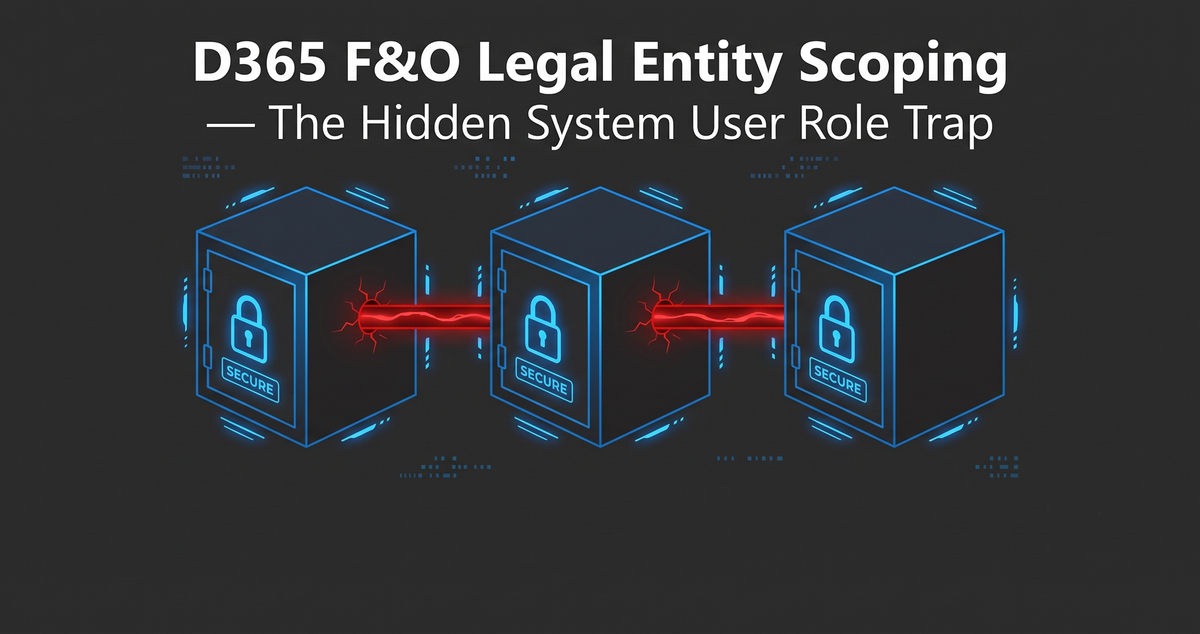
What happens when an Accounts Payable clerk in your United States office wires $500,000 to a vendor in your United Kingdom subsidiary?
If your ERP security architecture is poorly configured, that unauthorized wire transfer takes exactly five clicks.
This is not a theoretical IT problem. It is a massive financial vulnerability. When users can freely cross subsidiary boundaries within your ERP, you expose the business to direct internal fraud. Furthermore, when external auditors discover this lack of data isolation, it results in an immediate ISAE 3402 audit failure.
Today, we are tackling D365 F&O legal entity scoping from the inside out.
I am going to show you exactly how to lock a financial user down to a single subsidiary. More importantly, I will expose the hidden baseline security trap that standard implementation consultants miss, which leaves your global ledger completely exposed.
Step 1: The Dangerous Default and the Security Gap
Microsoft Dynamics 365 is designed for global, multi-national enterprises. Because of this, the system defaults to openness to ensure implementation teams can configure the system quickly.
The dangerous default is a setting called "Grant access to all organizations."
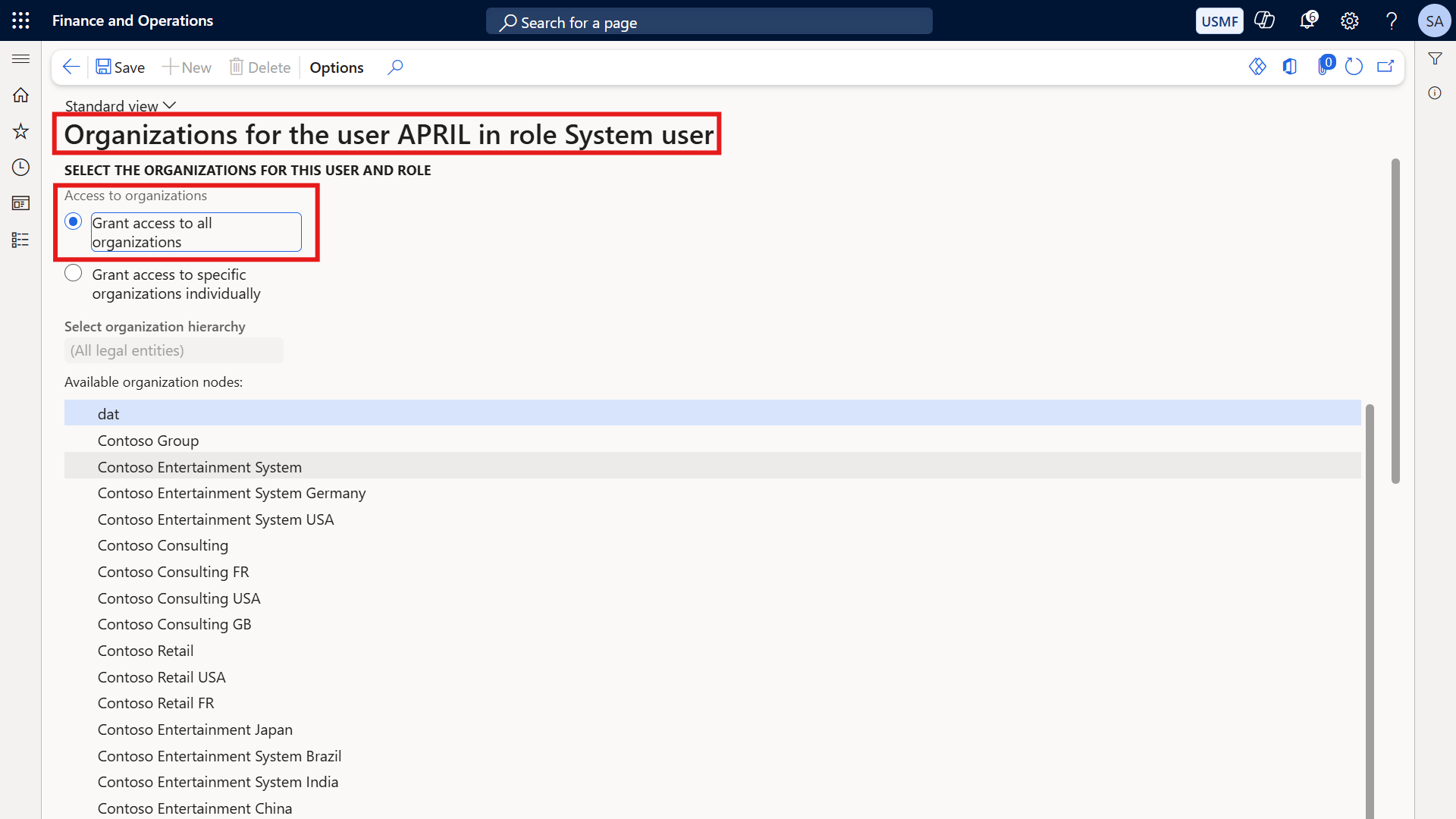
Let us look at a standard user setup. Navigate to System administration → Users → Users. Open the profile for our test user, April.
April is an Accounts Payable Clerk. But if you look at her role assignment in the security configuration, it clearly states: Grant access to all organizations.
(Before Screenshot: April’s user profile showing global organization access)
April is an AP Clerk with global access to all legal entities. She can click the company picker in the top right corner and jump from the US, to the UK, to Germany with zero friction.
This is a massive D365 cross company access risk. If an auditor sees this, you have failed your IT General Controls (ITGC) review.
Step 2: The Attempted Fix (Restricting the Business Role)
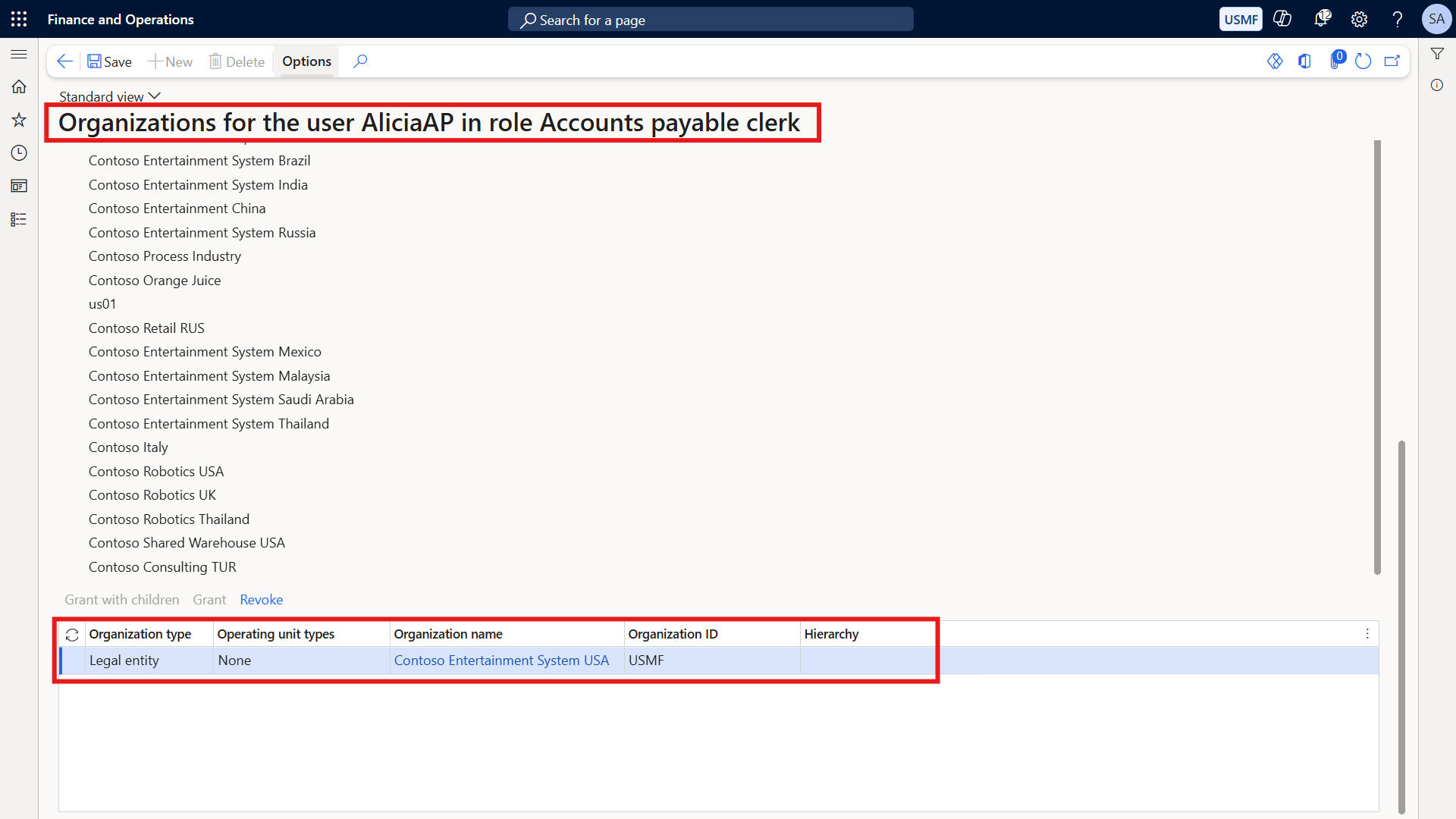
Let us secure a brand new user named AliciaAP. We want to properly D365 restrict user to company boundaries safely so she only operates within the US.
Navigate to System administration → Security → Assign users to roles.
Select AliciaAP on the left side of the screen. In the middle pane, highlight her Accounts Payable Clerk role. Next, click the Assign organizations button located right above the roles grid.
In the dialog box that appears, select the radio button for Grant access to specific organizations individually.
Scroll through the organization hierarchy tree, locate, and select Contoso Entertainment System USA. Click Grant so it moves into the selected grid at the bottom, and then click OK.
We have successfully executed D365 F&O assign organizations. Her Accounts Payable role is now explicitly restricted to the USMF legal entity.
(Action Screenshot: Assigning USMF to the AP Clerk role for AliciaAP)
Step 3: Discovering the Hidden Trap
Most functional consultants stop here, assuming the ledger is now secure. Let us prove why that assumption is dangerous.
Open an incognito browser window and log in as AliciaAP to test the actual end-user experience.
When AliciaAP logs in, she looks at the top right corner and clicks the company picker drop-down. Every single global legal entity is still sitting right there in the menu.
Cross Question 1: Why does the company picker still show all entities after restricting the AP Clerk role?
The company picker in Dynamics 365 does not filter based on your most restricted role. It aggregates access across ALL of your roles.
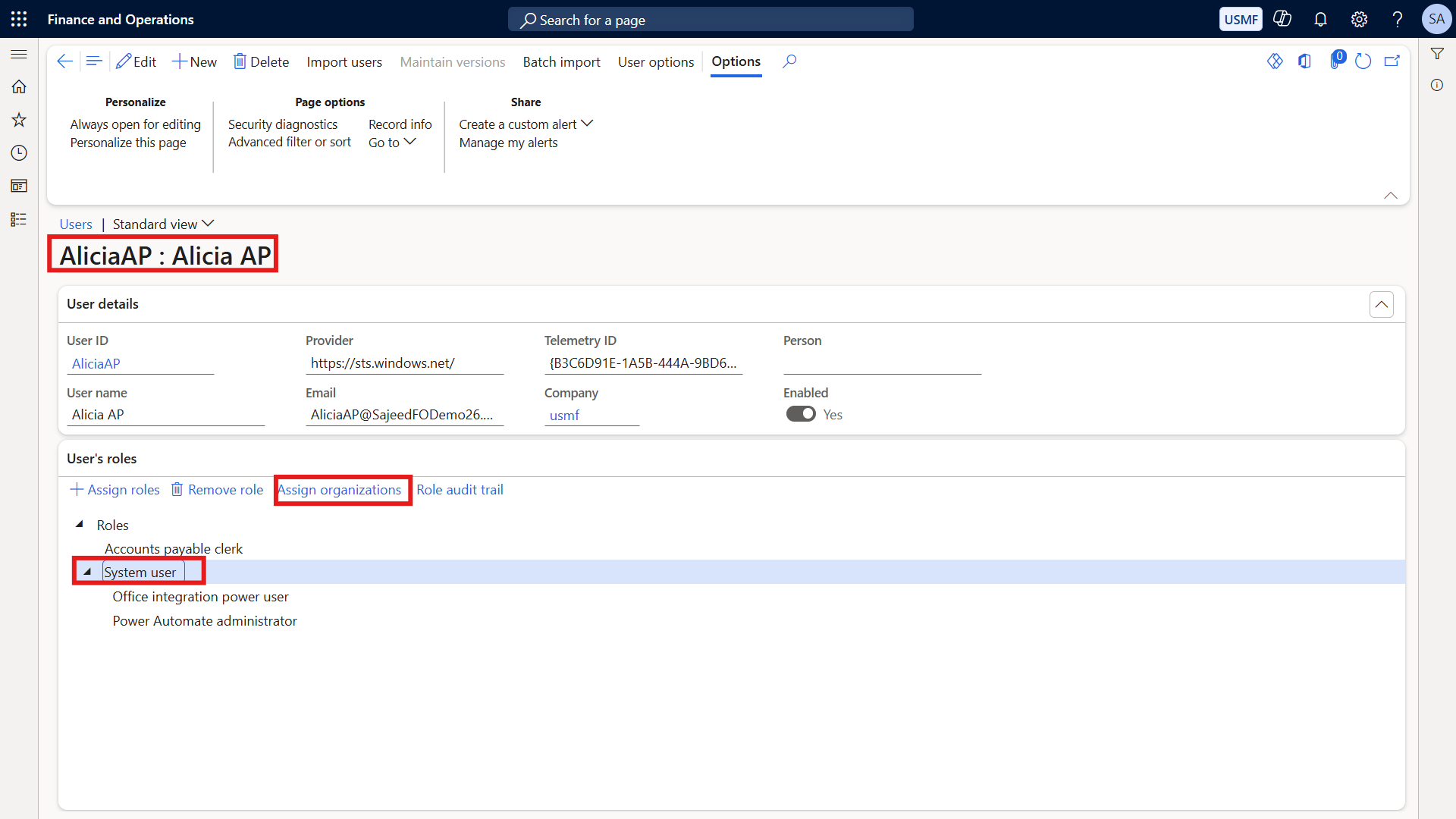
When AliciaAP was created, the system automatically assigned her a baseline role called the System User role. This role is auto-assigned to every user, and it has global access by default. Because this one hidden role has global reach, the company picker exposes the entire enterprise hierarchy.
Step 4: Exposing and Fixing the System User Role Trap
You are likely asking a very logical infrastructure question right now.
Cross Question 2: Can I just delete the System User role to fix this?
No. Removing the System User role breaks the user experience completely. If you delete it, AliciaAP's default dashboard will not load, her standard navigation menus will not open, and her personal UI preferences cannot be saved.
You cannot delete the System User role. You must keep it, and you must govern it. This is the D365 F&O System User role trap.
To enforce true D365 legal entity access control, we must govern the user profile directly.
Navigate back to System administration → Users → Users and open AliciaAP's user profile.
Look directly at the User roles grid. You will see the System User role sitting right there, automatically assigned by the system.
Highlight the System User role. Click Assign organizations directly above that specific grid.
Choose Grant access to specific organizations individually. Select USMF from the list. Click Grant, and then click OK.
The Rule of Total Restriction
This brings up a critical governance rule for enterprise security architecture.
Cross Question 3: Do I need to restrict every role in the user's profile — not just the business role?
Yes. Every single role in the user profile grid must be scoped individually.
Whether you assigned the role manually, or the system assigned it automatically (like the Employee role or the System User role), it must be restricted. Just one role with global access breaks the entire restriction and populates the company picker.
Step 5: The Ultimate Proof of Security
Let us prove the architecture is now fully secure.
Return to AliciaAP's incognito browser session. Have her refresh the page.
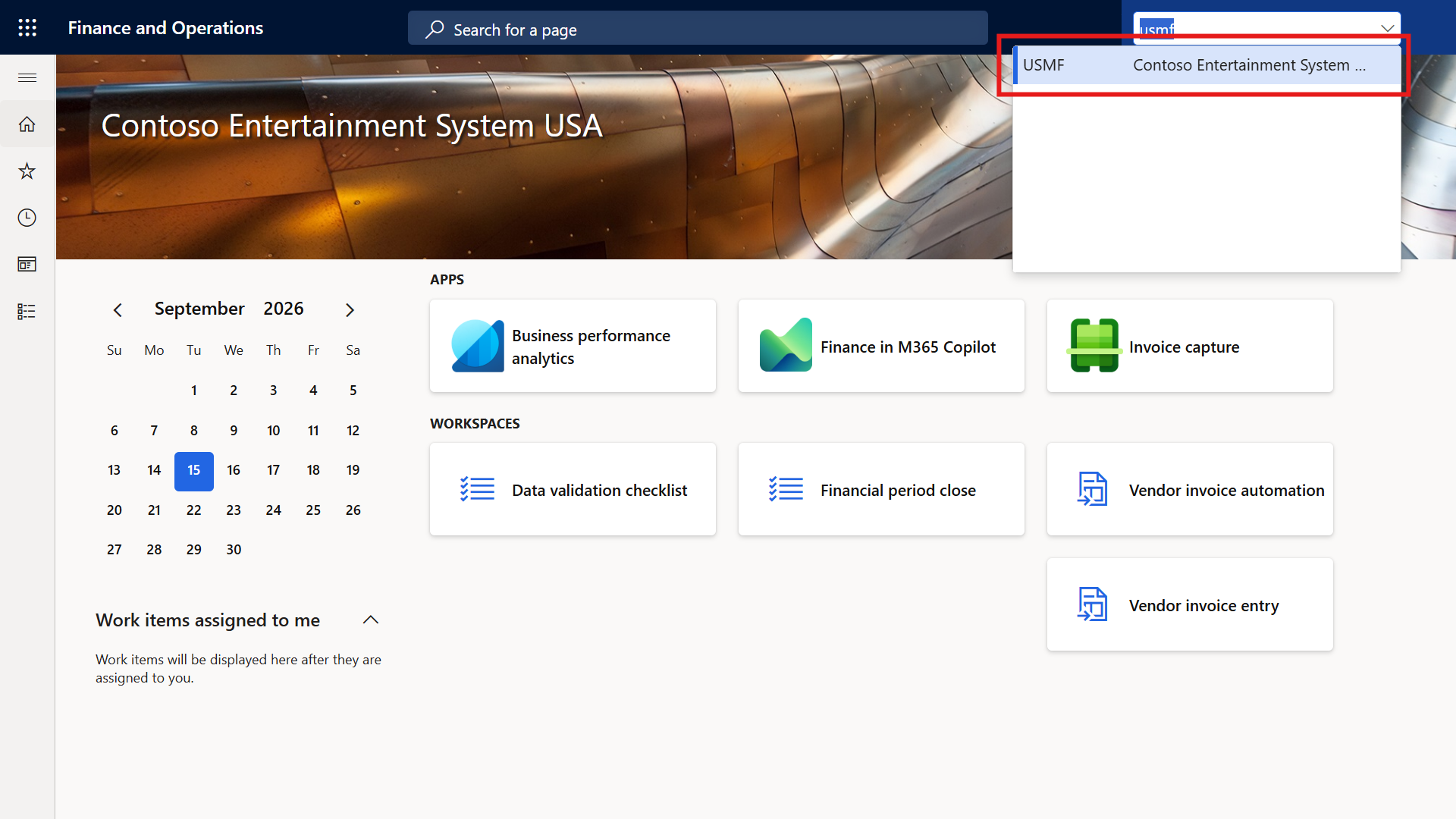
When she clicks the company picker in the top right corner, it is completely locked. She sees USMF and absolutely nothing else.
(After Screenshot: AliciaAP’s company picker showing only USMF)
To test the perimeter, ask AliciaAP to manually change the browser URL. Have her attempt to change the company code in the URL string to a different entity, like &cmp=GBSI.
The ERP will instantly throw a hard Access Denied error. The ledger is officially sealed.
Securing the Global Financial Perimeter
This is what Enterprise Security Architecture actually looks like in practice. It is not just about ticking a box on a role assignment screen.
It is about proving to your CFO and your external auditors that the underlying identity framework has zero loopholes. It is about understanding how baseline system roles interact with the user interface to expose financial data.
If you are building an audit-proof portfolio of Dynamics 365 security controls, you need to understand how these foundational pieces connect. You can find the complete blueprint for this architecture by visiting my governance series at sajeedmullaji.com/tag/d365-governance-roadmap.
Stop leaving your financial perimeters to chance. Master the architecture, govern the access, and protect the ledger.
For more brutal, tested, and verified enterprise security breakdowns, visit sajeedmullaji.com.
Executive Q&A: Legal Entity Scoping for CFOs and Audit Directors
Q: If we have 5,000 active users in our ERP, do we have to restrict the System User role manually for every single employee?
No. While manual restriction is required for isolated fixes, enterprise deployments manage this at scale using Organizational Hierarchies. You configure security rules to assign organization access dynamically based on the user's position in the HR department hierarchy, ensuring the System User role is scoped automatically during the Joiner/Mover provisioning process.
Q: Does legal entity scoping prevent a user from seeing global vendor master data if the table is shared across companies?
No. Legal entity scoping (Assign Organizations) only restricts access to company-specific transactional data (like invoices and journals). If your architecture uses Cross-Company Data Sharing for the Vendor Master table, a restricted user will still see all global vendors. To restrict shared tables, you must implement Extensible Data Security (XDS) policies.
Q: If our external auditors find users with global System User access during an ISAE 3402 review, is it an automatic control failure?
Yes. Auditors test for logical access isolation. If an Accounts Payable clerk in the US has the System User role set to "All organizations," they possess the technical capability to view financial frameworks outside their authorized jurisdiction. Even if they never execute a cross-company transaction, the existence of the unrestricted access is a direct breach of Segregation of Duties (SoD) and data isolation controls.