D365 F&O Security Diagnostics and View Permissions — Answer Any Audit Question in 60 Seconds
Your auditor asks who can modify vendor bank routing numbers. Can you answer with forensic proof in 60 seconds? Discover the two native D365 tools that make it possible.

When an external auditor points at a high-risk screen in your enterprise resource planning system and asks for proof of access, the clock starts ticking.
They do not want verbal assurances from your IT management team, and they certainly do not want to review a massive, outdated Excel spreadsheet.
They want forensic, undeniable evidence of exactly who can modify critical financial data. If your team cannot provide this technical proof in sixty seconds, you fail the ITGC audit.
Today, I am showing you exactly how to bypass the guesswork and take absolute control of your audit narrative.
We are going to use native D365 F&O Security Diagnostics to trace access directly from the user interface down to the database level.
Let us look at a real-world scenario that terrifies CFOs and controllers alike: D365 vendor bank account access.
The Shocking Reality of Standard Roles
Vendor bank account fraud is the most common and devastating internal threat vector in enterprise finance.
If a single employee has the system access to create a vendor profile and also change that vendor's routing number, you have a massive Segregation of Duties (SoD) violation.
Most executives inherently assume the system protects them from this out of the box. This is a highly dangerous assumption.
In standard Dynamics 365 Finance & Operations, the default "Accounts Payable Clerk" role has full Create, Read, Update, and Delete (CRUD) access to vendor bank routing numbers.
Yes, you read that correctly. The baseline clerk role can redirect a two-million-dollar vendor payment to a completely new bank account without any system friction.
Telling an auditor that "our clerks know not to do that" or "we have a manual review process outside the system" is an automatic audit failure.
You need absolute D365 access control verification baked into the architecture. Here is exactly how you prove your access landscape live on screen.
Step 1: Security Diagnostics (The Form-Level Audit)
External auditors do not think in terms of backend security role architecture. They think in terms of business risk and front-end transactional forms.
We need to start exactly where the auditor is pointing. Navigate to Accounts payable, then Vendors, and open the All vendors list.
Select any vendor record in your system and look at the Action Pane at the top. Under the Vendor tab, click Bank accounts.
You are now standing on the exact form where routing numbers are modified. This is the risk point.
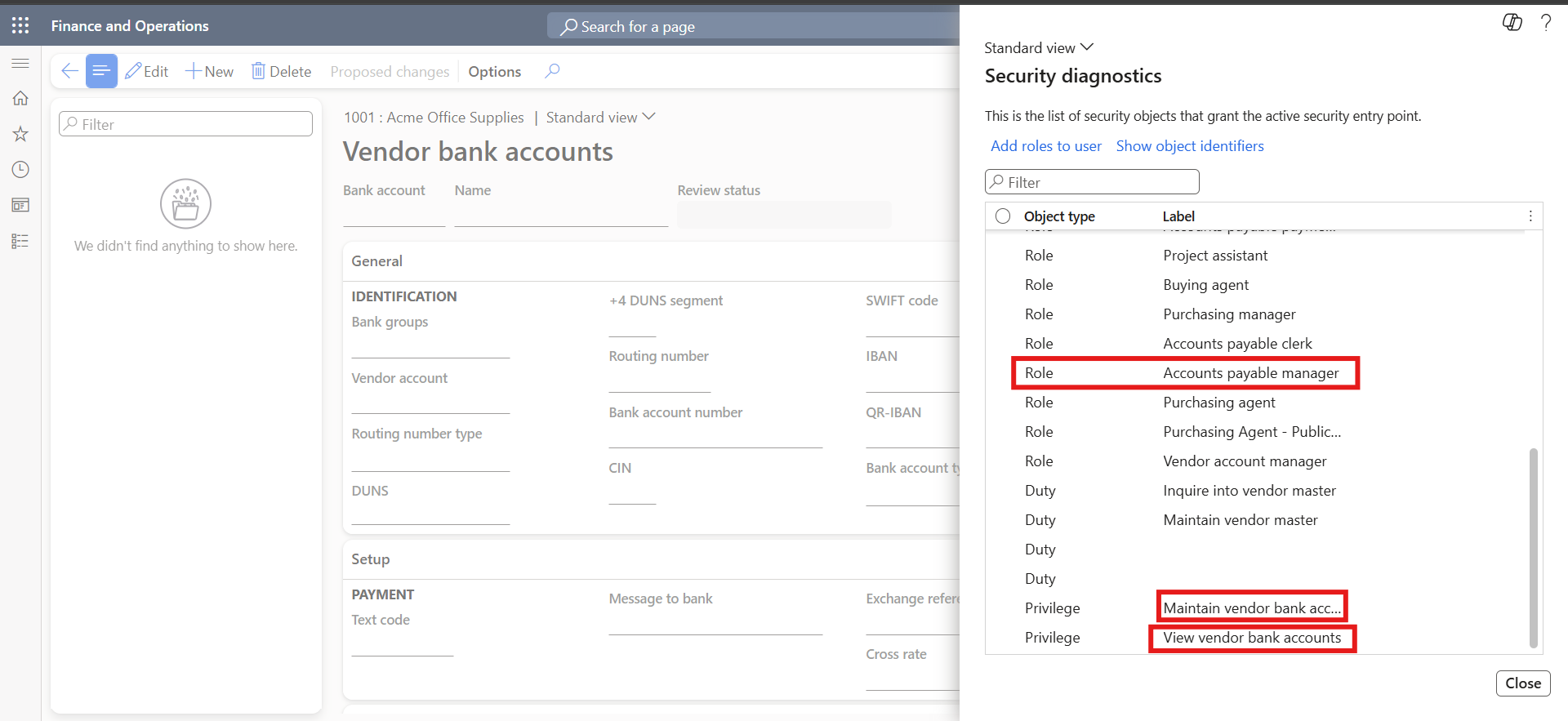
To reveal who has access to this data, go to the top Action Pane, click the Options tab, and select Security diagnostics.
(Reference your screenshot here showing the Security Diagnostics pane sliding out from the right)
The system instantly generates a list of every Role, Duty, and Privilege that grants access to this specific menu item.
You will immediately see standard roles listed, including Accounts Payable Clerk, Accounts Payable Manager, Purchasing Agent, and Vendor Account Manager.
You will also see the exact specific privilege granting the access: "Maintain vendor bank accounts."
This is one of the most powerful D365 F&O security audit tools because it works in reverse. It traces from the user interface directly back to the security architecture, matching how an auditor investigates.
Cross Question 1: Why not just look at the role assignment screen?
When I sit across from IT directors, they often ask why they cannot just use the standard user-to-role assignment screen in System Administration to answer the auditor.
The role assignment screen only tells you which roles a specific human user has been granted. It tells you absolutely nothing about what those roles actually permit at the object level.
Security Diagnostics eliminates this blind spot. It starts at the specific business risk—the screen—and works backward to expose the roles holding the keys.
Step 2: View Permissions (The Database-Level Proof)
Security Diagnostics shows us that the Accounts Payable Clerk can touch the form. But an experienced auditor will challenge this immediately.
They will ask: "Does the AP Clerk just have read-only visibility to the routing number, or can they actively type in a new one?"
We need undeniable, database-level proof. For this, we use D365 View Permissions.
Navigate to System administration, then Security, and open Security configuration.
In the middle pane, select the Accounts payable clerk role. On the Action Pane directly above it, click View permissions.
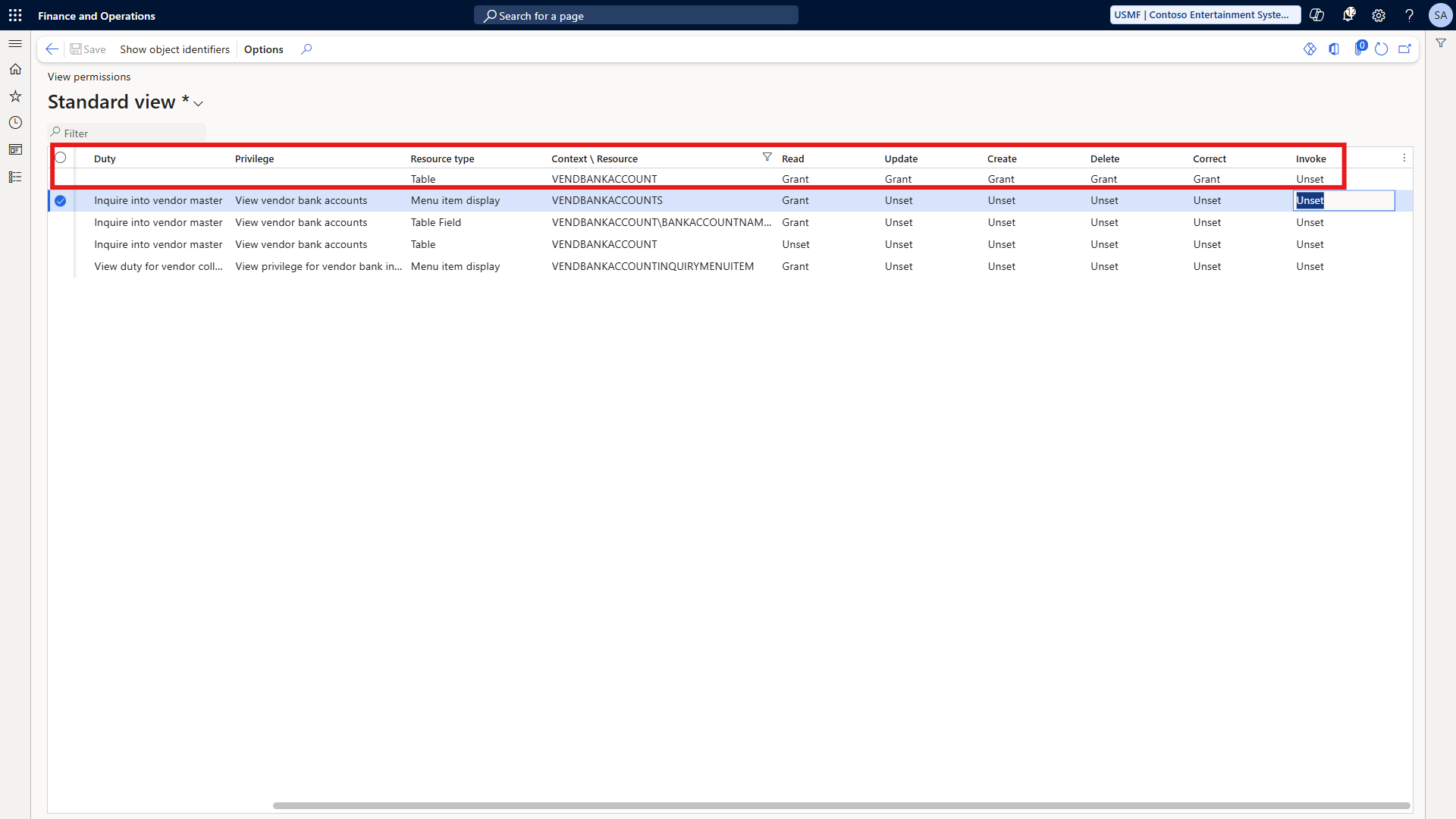
A new screen will open displaying thousands of securable objects. In the search filter at the top, type the exact backend table name: VendBankAccount.
(Reference your screenshot here showing the View Permissions VendBankAccount result grid)
Look at the result in the grid. This is your forensic audit evidence.
The grid explicitly shows Read Grant, Update Grant, Create Grant, Delete Grant, and Correct Grant.
You have just executed a definitive D365 F&O role permissions check. You proved, with absolute technical certainty, that this role has full CRUD access to modify routing numbers.
Cross Question 2: Can these tools prove a user should NOT have access?
This is where the actual governance value lies. Finding existing access is easy; proving the absence of access is difficult.
When you architect a custom, least-privilege role to fix these SoD conflicts, you must prove to the auditor that the toxic duties have been successfully stripped away.
You run View Permissions on your newly created custom role, filter for the high-risk table, and show the auditor a completely blank result or a strict "Read-Only" grant.
The absence of access requires the exact same forensic proof as the presence of access. This tool provides it instantly.
Cross Question 3: Do these tools work for custom roles?
Many implementation teams mistakenly assume these diagnostic tools only function for Microsoft's out-of-the-box standard roles.
Both tools work identically for your custom roles. Once a custom role is published in the environment, the system makes absolutely no distinction.
Your custom roles will appear in the Security Diagnostics pane and can be aggressively audited via View Permissions exactly like a standard role.
Replacing Guesswork with Governance
When you face an ITGC audit, your enterprise credibility depends entirely on your ability to produce immediate, irrefutable evidence.
If your technical team is fumbling through the Application Object Tree (AOT) or guessing access levels based on role names, you have already lost the auditor's trust.
Mastering these native diagnostic tools allows you to dictate the audit narrative. You provide the exact database-level proof required, live on screen, while the auditor watches.
Do not leave your access controls to chance, and never rely on verbal policies to protect your ledger.
For a complete visual walkthrough of these exact steps, watch the embedded YouTube video below.
This security protocol is just one piece of a secure enterprise architecture. For the complete framework, explore the full series at sajeedmullaji.com/tag/d365-governance-roadmap.
Stop relying on assumptions. Master the architecture, govern the access, and protect the ledger.
For more tested, proven enterprise security blueprints, visit sajeedmullaji.com.
Executive Q&A: Access Control Verification for CFOs and Audit Directors
Q: If we use View Permissions to prove a role is restricted to Read-Only, does that restriction also protect the data from being updated via the Excel Add-in?
Yes. View Permissions displays the explicit Role-Based Access Control (RBAC) rights mapped directly to the database table. If a user is restricted to Read-Only access at this table level, that restriction cascades universally. They will be blocked from updating the record in the user interface, via the standard Excel Add-in, and through standard data entities. The database enforces the rule regardless of the entry point.
Q: Does the Security Diagnostics pane show restrictions that have been applied using Extensible Data Security (XDS) policies?
No. Both Security Diagnostics and View Permissions analyze and display explicit Role-Based Access Control (RBAC) grants. XDS operates as a secondary, record-level filter that applies on top of RBAC. If a role has "Update" rights in View Permissions, but an XDS policy prevents them from seeing specific legal entity data, the XDS policy wins. However, these two diagnostic tools will not visually display that XDS interaction.
Q: When investigating Segregation of Duties, can View Permissions show me if a specific user has conflicting access across multiple assigned roles?
View Permissions evaluates the effective access of a single selected Security Role, Duty, or Privilege. It does not calculate the net effective access of a specific human user who holds multiple roles simultaneously. To prove that a specific user does not possess conflicting access across their combined roles, you must utilize the native Segregation of Duties rules engine to run a conflict batch job against the user assignments.