D365 F&O SIEM Live — Threats Detected in Real Time with Azure Log Analytics and KQL
Discover how to build a centralized SIEM telemetry architecture for D365 F&O using Azure Log Analytics and Microsoft Entra ID diagnostic logs. Run live KQL threat hunting queries that catch unauthorized access attempts before your auditor does.

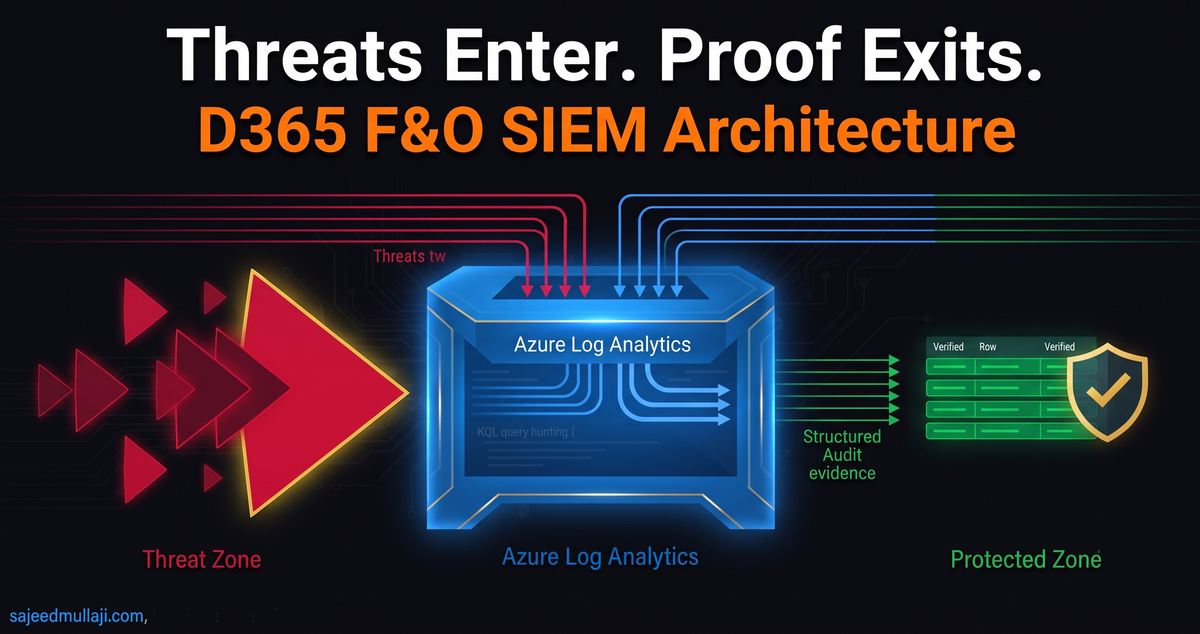
If an auditor asks for an immutable, forensically sound audit trail of every administrative change and financial data access event within your Microsoft Dynamics 365 Finance & Operations environment from the last 90 days, can you produce it in five minutes?
If you are relying on D365 F&O's internal database logging alone, the answer is almost certainly no.
Inability to answer that question leads directly to IT General Controls (ITGC) audit failures, qualified audit opinions, and material compliance breaches under GDPR, SOX, or regional data protection acts.
This article provides the technical blueprint—demonstrated live in the video above—to move your ERP security governance from reactive guesswork to real-time, centralized intelligence using Azure Log Analytics and Kusto Query Language (KQL).
The Auditability Gap: Why D365 F&O Native Logs Are Not Enough
Dynamics 365 Finance & Operations is a transaction powerhouse, but it is not an SIEM (Security Information and Event Management) system.
Relying on internal database logs for security governance presents three critical risks:
- Data Volatility: Internal logs are stored operationally. They can be purged, modified, or overwritten by system processes or malicious actors to cover their tracks.
- Siloed Telemetry: An attacker targeting D365 F&O rarely starts and ends at the ERP application layer. They compromise identity first. If your ERP logs are separated from your identity provider (Entra ID) logs, you lack correlation.
- Performance Impact: Enabling verbose database logging on sensitive tables (like Vendor Bank Accounts) inside F&O directly degrades application performance for end-users.
The Solution: You must decouple security telemetry from the ERP application layer and stream it into an immutable, external vault. That vault is Azure Log Analytics.
The Architecture: Entra ID as the Perimeter Shield
For a cloud-native ERP like D365 F&O, Entra ID (formerly Azure AD) is the perimeter security barrier.
Every financial override, every vendor master change, and every administrative login begins with an authentication event in Entra ID. By centralizing Entra ID telemetry, we gain visibility not just into who logged in, but what they did immediately after.
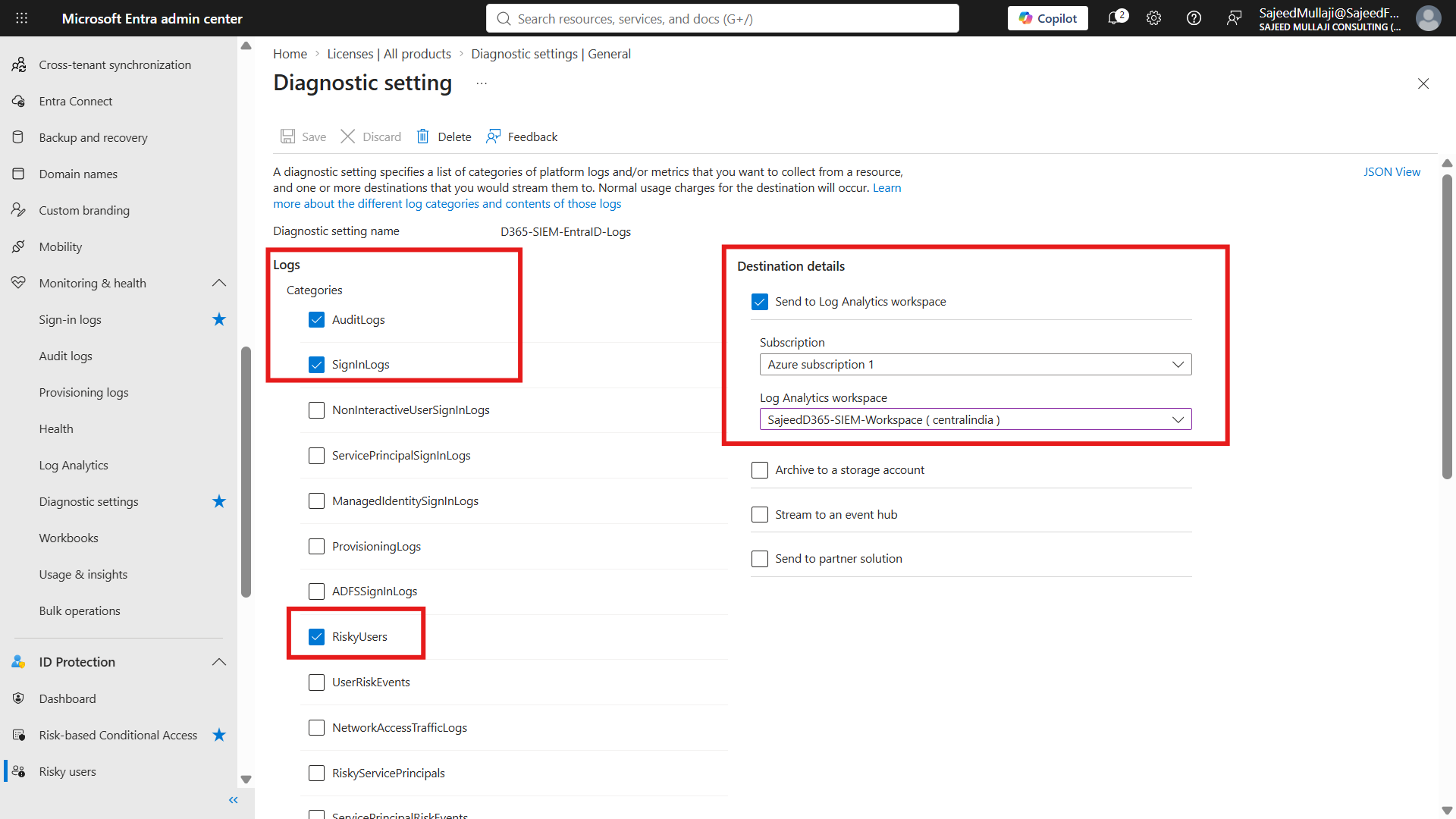
By configuring Entra ID Diagnostic Settings to stream AuditLogs, SignInLogs, and RiskyUsers to an Azure Log Analytics Workspace, we create a unified dataset that satisfies auditors and empowers your security team to threat hunt using KQL.
Phase 1: Verified Configuration Steps
The following is the exact configuration used to achieve the live results shown in the video.
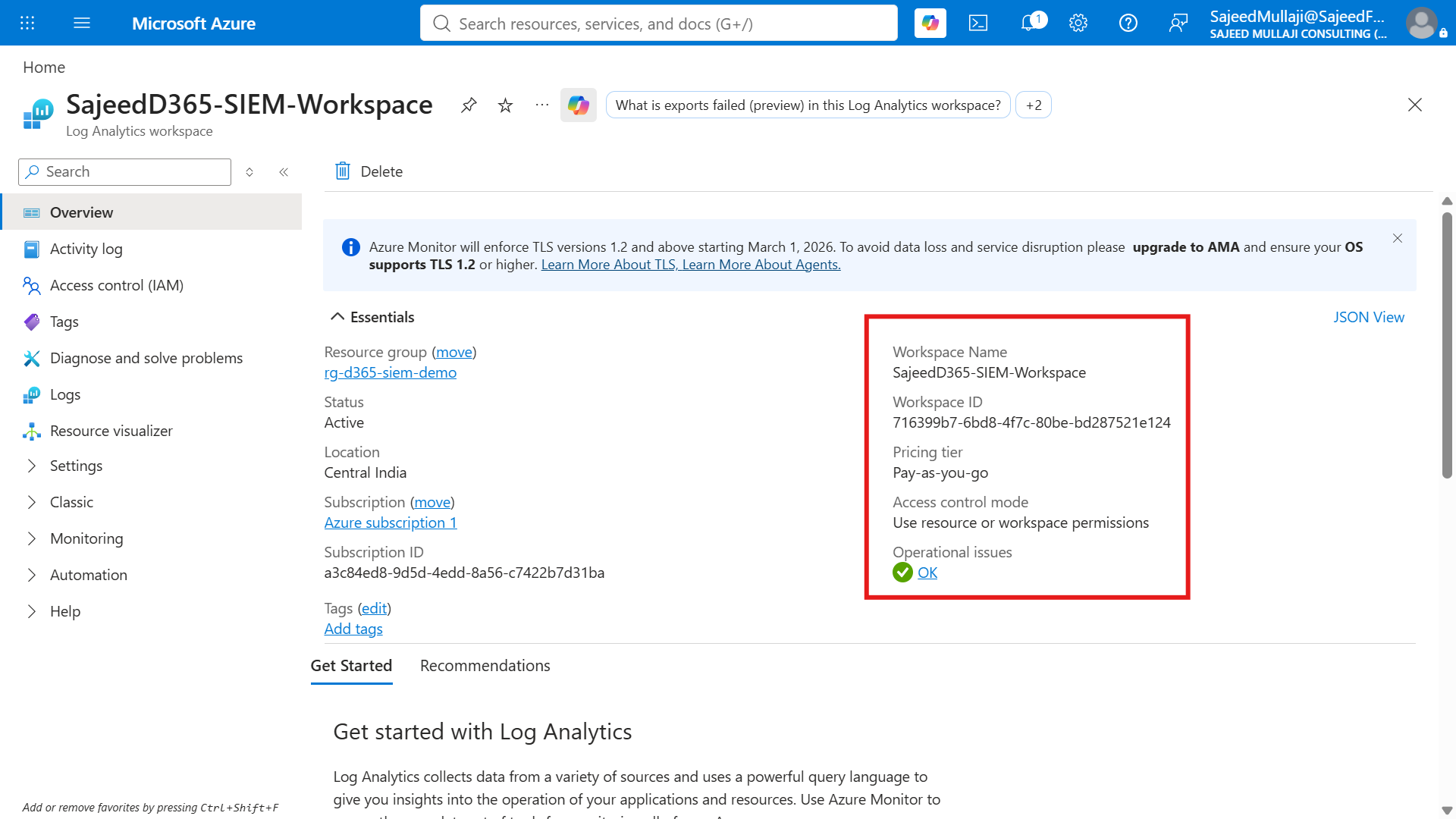
Phase 1: Create the Azure Log Analytics Workspace
This workspace will act as the immutable vault for all your ERP and identity telemetry.
- Log in to the Azure Portal (portal.azure.com).
- In the global search bar, type and select Log Analytics workspaces.
- Click + Create.
- Basics Configuration:
- Subscription: Select your active Pay-As-You-Go subscription.
- Resource Group: Create a new RG dedicated to security governance (e.g.,
RG-D365-Security-Governance). - Name: Provide a globally unique name (e.g.,
SajeedD365-SIEM-Workspace). - Region: Select a region compliant with your data residency requirements. For this example, we selected Central India to serve GCC/India teams.
- Subscription: Select your active Pay-As-You-Go subscription.
- Click Review + create, then Create.
Cross Question 1: A CFO might ask, "Does streaming these diagnostic logs incur heavy Azure consumption costs?"Verified Answer: Entra ID log ingestion is priced per Gigabyte. For standard sign-in and audit telemetry for a mid-sized organization, costs are negligible—often mere pennies a day, making enterprise-grade observability financially accessible.
Phase 2: Connect Entra ID Diagnostic Settings
We now need to tell Entra ID to send its logs to the workspace we just created.
- Open the Microsoft Entra admin center (entra.microsoft.com).
- Navigate to Identity > Monitoring & health > Diagnostic settings.
- Click + Add diagnostic setting.
- Name the setting (e.g.,
D365-SIEM-EntraID-Logs). - Categories: Check the following boxes to capture the necessary ERP governance data:
AuditLogsSignInLogsNonInteractiveUserSignInLogsRiskyUsers
- Destination details: Check Send to Log Analytics workspace.
- Select your Subscription.
- Select the workspace you created in Phase 1 (
SajeedD365-SIEM-Workspace).
- Select your Subscription.
- Click Save.
Cross Question 2: An Implementation Lead asks, "How long does it take for logs to appear after configuration?"Verified Answer: While the connection is instant, ingestion latency into Log Analytics typically ranges from 15 minutes to one hour for the initial sync. Data does not appear in real-time, but with a very short delay.
Screenshot 1: Log Analytics Workspace Overview
Screenshot 2: Entra ID Diagnostic Settings
Phase 2: The Kill Shot — Threat Hunting with KQL
Once data begins flowing, we use Kusto Query Language (KQL) to turn noise into intelligence.
Navigate to your Log Analytics Workspace (SajeedD365-SIEM-Workspace) and click on the Logs blade. Close the default queries pop-up to get a blank editor.
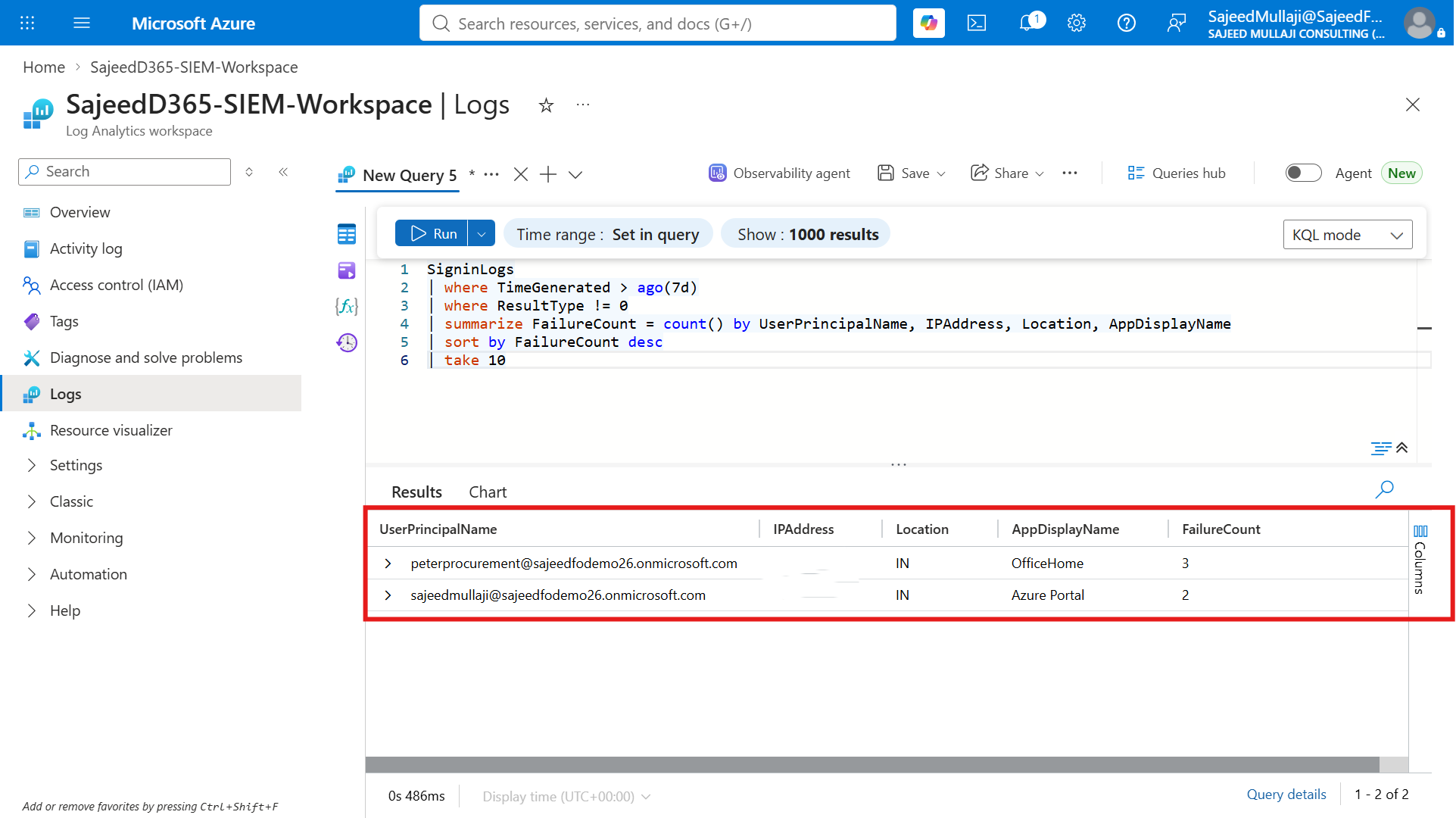
Screenshot 3: Live KQL Query Results
The Failed Sign-In Query (The Kill Shot Explained)
The screenshot above was generated by running the exact KQL query below. This query is designed to be run proactively by IT Audit Directors to spot reconnaissance attempts against D365 F&O.
Code snippet
SigninLogs
// Filter for events within the last 24 hours
| where TimeGenerated > ago(24h)
// Filter specifically for failures (Result Type not equal to 0)
| where ResultType != 0
// Exclude common noise (e.g., intermittent service principal failures)
| where Identity != "Microsoft App Access Panel"
// Summarize by User, IP, and Location to identify specific attackers
| summarize FailureCount = count() by UserPrincipalName, IPAddress, Location, AppDisplayName, DeviceDetail
// Sort by the highest failure count to see the most aggressive targets
| sort by FailureCount desc
// Focus on high-risk accounts, e.g., "Procurement" roles
| where UserPrincipalName contains "procurement"
How to Interpret this "Kill Shot":
- UserPrincipalName:
peter procurement@...-> This indicates a targeted attack against a sensitive financial role. - FailureCount: 3: While low, repeated failures against a high-value target require investigation.
- Location: India: If your organization operates only in the UK, a sign-in from India requires immediate attention (Impossible Travel scenario).
- AppDisplayName: OfficeHome: The attacker is attempting to access the Microsoft 365 suite using the procurement user's credentials. Once inside, they have access to F&O data, email, and SharePoint.
Immediate Action Required:
- Investigate User Risk: Check if Entra ID Identity Protection has flagged this user as "At Risk."
- Geofencing: Review Conditional Access policies to ensure legacy authentication is blocked and sign-ins are restricted to authorized geographies.
- MFA Verification: Confirm the user is registered for MFA and if any recent changes were made to their authentication methods.
Cross Question 3: An IT Audit Director asks, "Is this setup compliant with SOX and GDPR requirements?"
Verified Answer: Yes. By centralizing these logs in Azure Log Analytics with configured retention policies (up to 7 years), you create an immutable audit trail that satisfies SOX ITGC requirements for change management and access logging. Furthermore, choosing your Azure region (e.g., UK South or Central India) ensures data residency compliance.
Phase 3: The Roadmap — Future Capabilities
Centralizing Entra ID logs is just Phase 1 of a mature security governance strategy for D365 F&O. The video mentioned these advanced capabilities we can build on this foundation:
1. Microsoft Sentinel Integration
Azure Log Analytics is the storage; Sentinel is the brain. By connecting Sentinel to your workspace, you gain SOAR (Security Orchestration, Automation, and Response) capabilities. This allows us to write automated playbooks—for example, if Peter Procurement has 3 failed logins and is flagged as high-risk, Sentinel can automatically trigger a Logic App to disable his user account in Entra ID and alert the CISO instantly.
2. D365 F&O Database Audit Logs
While we protect the identity perimeter, we must also govern the application data. Through specific configuration within D365 F&O (Database Logging setup) and integration with Azure Monitor, specific table-level changes (e.g., VendTable modifications) can be streamed alongside Entra ID logs, providing total correlation between the identity and the data change.
Cross Question 4: A D365 Architect asks, "Does this replace LCS Issue Search or standard alert rules?"
Verified Answer: It complements them. LCS is reactive for break-fix. This solution is proactive for security governance and audit. We are creating a single pane of glass for security, not operations.
3. Application Insights Integration
For developers and implementers, integrating D365 F&O telemetry with Application Insights provides deep visibility into performance bottlenecks and exceptions. From a security perspective, this helps identify unusual usage patterns that might indicate a compromised session token.
4. KQL Alert Rules
We cannot watch the dashboard 24/7. Azure Monitor allows you to convert the "Kill Shot" KQL query into an automated Alert Rule. If this query returns any results (like the procurement attack), an email is instantly dispatched to the IT security team.
5. Power BI Integration
For CFOs and Boards, raw logs mean nothing. Power BI can connect directly to Azure Log Analytics to provide executive dashboards on ERP security posture, showing trends in failed logins, geographical access anomalies, and compliance status against ITGC controls.
Cross Question 5: A Microsoft Partner asks, "How does this add value to my managed service offering?"
Verified Answer: It transforms your offering from break-fix support to proactive managed security services. You can now provide your clients with monthly governance reports showing their ERP security health, which is a high-margin advisory service.
Conclusion & Next Steps
Securing D365 Finance & Operations requires a modern, cloud-architected approach. You cannot audit what you cannot see, and you cannot trust logs that can be altered.
By following the architecture and verified steps in this article, you create an untouchable audit trail of your ERP identity perimeter.
Need assistance implementing this architecture in your production environment? The complete, step-by-step configuration guide with exact navigation is available at:
FAQ Section
Q1: Can I use an existing Log Analytics Workspace, or do I need a new one for D365?
A1: You can use an existing workspace if you are already monitoring other Azure resources. However, a dedicated workspace for ERP governance often simplifies data management, access control, and cost tracking for IT auditors.
Q2: What permissions do I need to configure Diagnostic Settings in Entra ID?
A2: You must be assigned the Global Administrator or Security Administrator role in Microsoft Entra ID to create Diagnostic Settings.
Q3: How far back can I query the data in Log Analytics?
A3: The retention period is configurable per table in Log Analytics. By default, it is often 30 days, but it can be extended to two years or more to meet stringent enterprise audit requirements for historical log data.
Q4: Does this solution monitor custom D365 F&O roles?
A4: Yes. Because it monitors the underlying Entra ID authentication and audit events, it makes no difference whether the user is assigned a standard 'System Administrator' role or a heavily customized, granular security role. Every action they take generates telemetry.
Q5: Does this impact D365 F&O performance?
A5: No. This is the primary advantage of this architecture. The telemetry is streamed directly from the Entra ID and Azure control planes, bypassing the D365 F&O Object Server (AOS) entirely, resulting in zero performance degradation for end-users.
Visit sajeedmullaji.com